![White_Bowimi_Logo_2025.png]](https://help.bowimi.com/hs-fs/hubfs/White_Bowimi_Logo_2025.png?height=40&name=White_Bowimi_Logo_2025.png)
Steps:
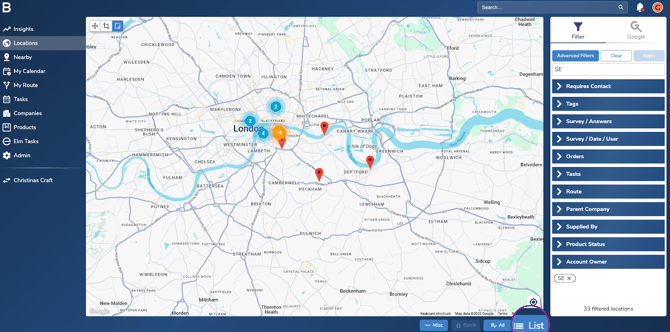
1. Select the Locations tab.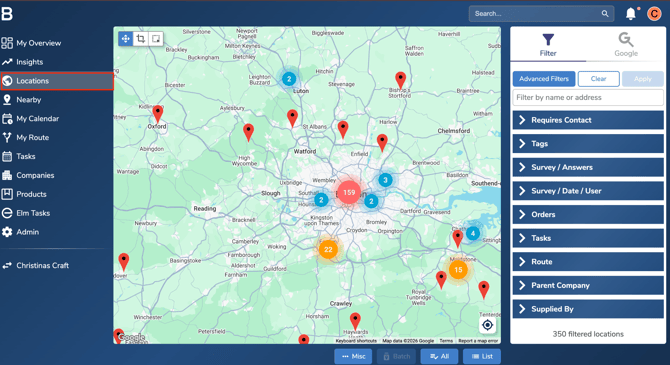
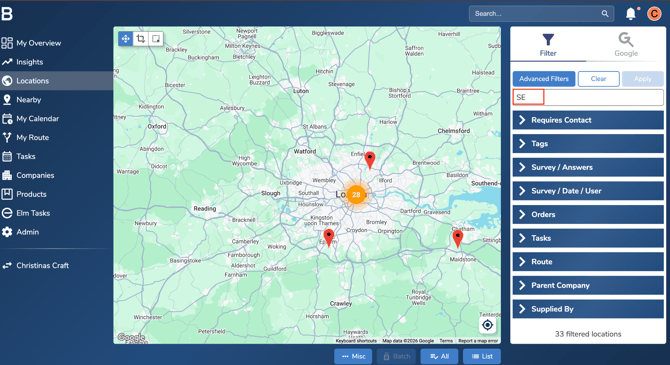
or use filters to narrow the list
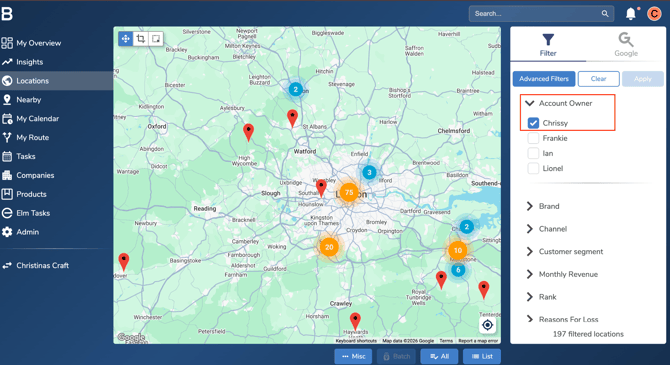
3. Choose the locations:
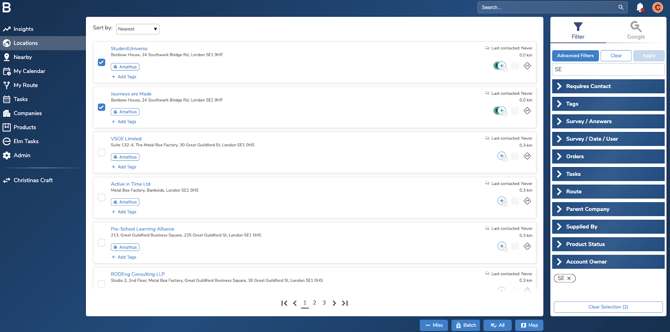
- Use the map selection tool (top-left), or
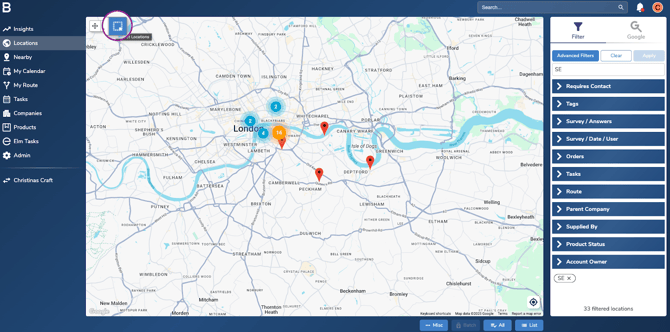
- Use list view and tick each checkbox.
4.To work with all results, select Select all.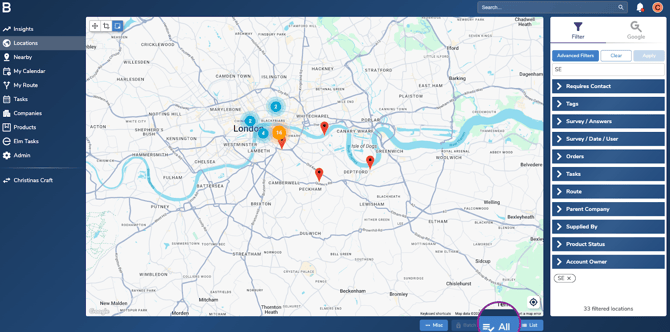
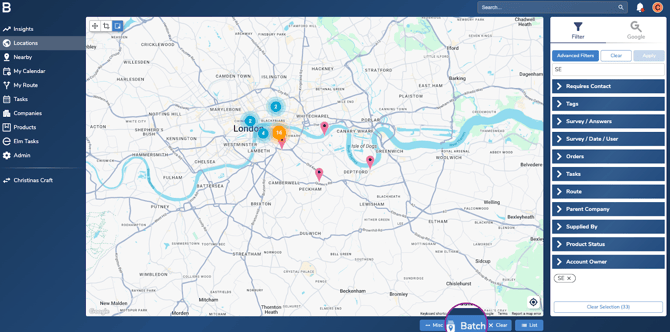
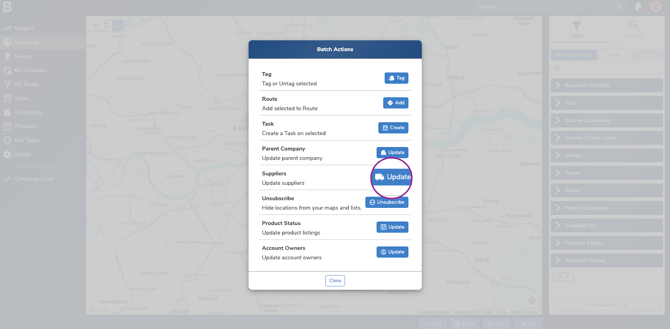
6.Select Update next to supplier.
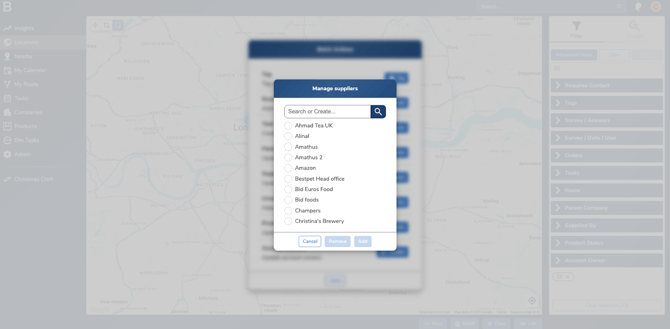
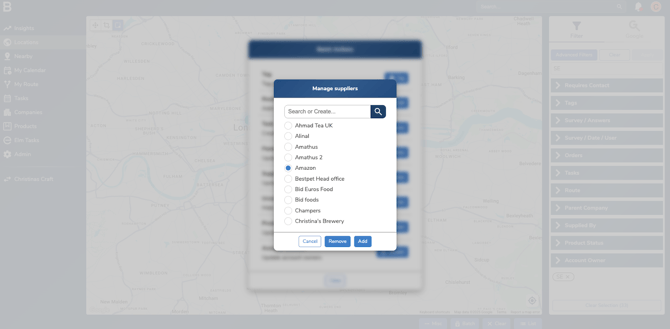
7.Search for the supplier you want to assign.
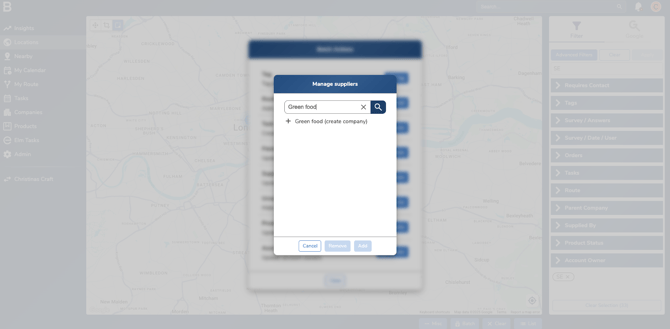
- If the supplier does not exist, create a new company record.
Troubleshooting:
- Cannot create a Supplier/Route to Market?
- Ask your Admin or leadership team to update your permissions.
- Still having issues?
- Contact the Bowimi Support Team for help.