![White_Bowimi_Logo_2025.png]](https://help.bowimi.com/hs-fs/hubfs/White_Bowimi_Logo_2025.png?height=40&name=White_Bowimi_Logo_2025.png)
Adding a location via search bar
Steps:
-
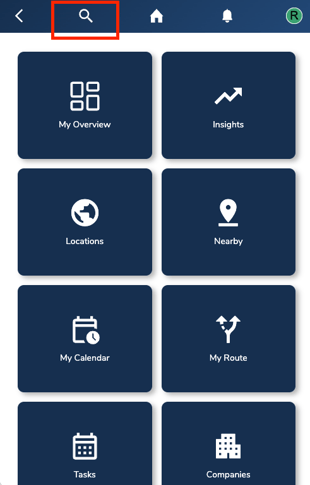
Go to your account and use the search bar at the top to find the location.
-
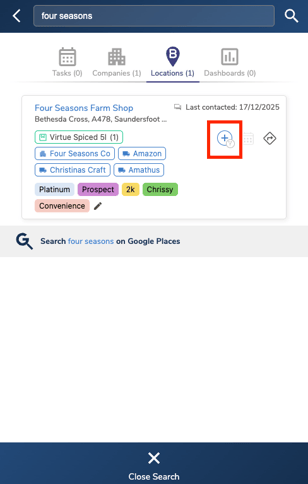
Click the “+” icon next to the location to add it to the route.
-
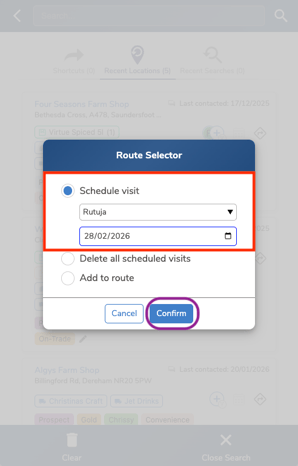
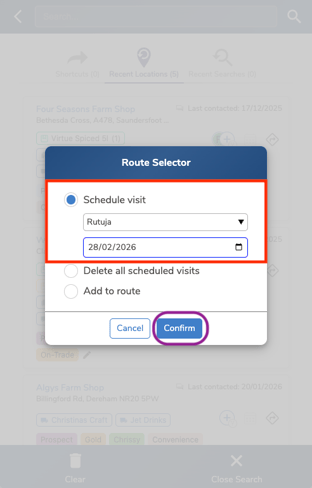
Select the date you plan to visit the location. Then click “Confirm” to add it to your calendar and include it in your route plan.
-
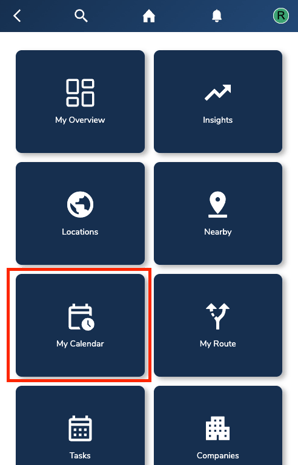
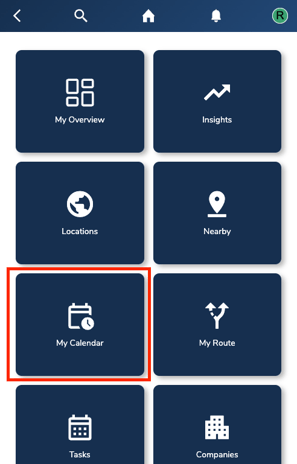
Go back to the Home Page and click “My Calendar”.
-
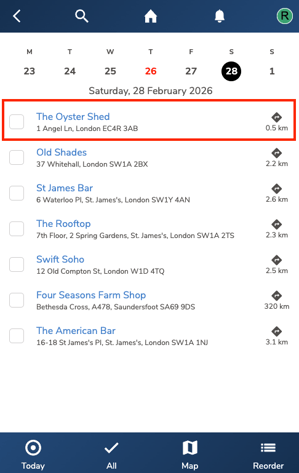
Once added, the location will appear in your list for the selected day, where you can use it to plan your route.
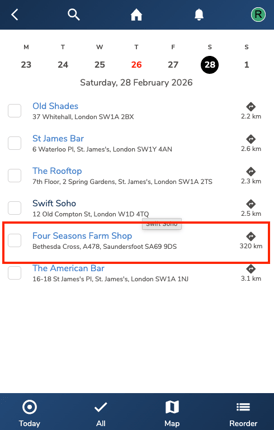
Note: To further plan and optimize the route follow this guide.
Adding a route via Google Prospecting
Steps:
-
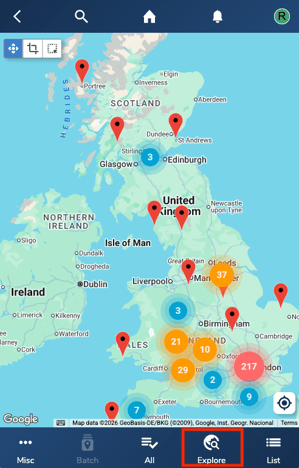
Go to the Locations page in the platform and click on the “Explore” tab at the bottom.
-
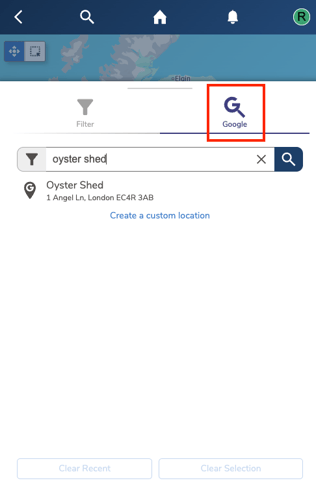
Click on the “Google” tab and search for the location in the search bar.
-
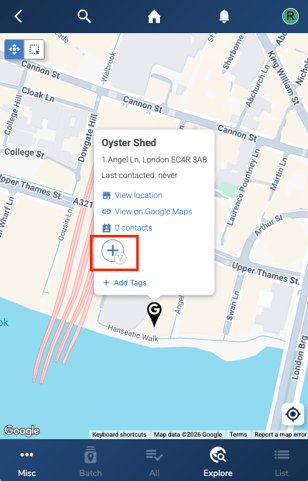
Select the location and then click on the “+” icon.
-
Select the date you plan to visit the location. Then click “Confirm” to add it to your calendar and include it in your route plan.
-
Go back to the Home Page and click “My Calendar”.
-
Once added, the location will appear in your list for the selected day, where you can use it to plan your route.
Adding a location to a route from Tasks
Steps:
-
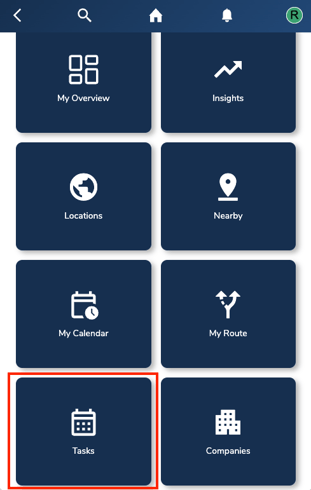
Click on the “Tasks” option in the home page.
-
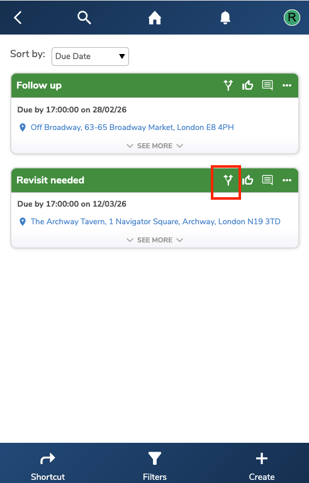
Choose the respective task and and click the Route icon next to it to add that location to your route.
-
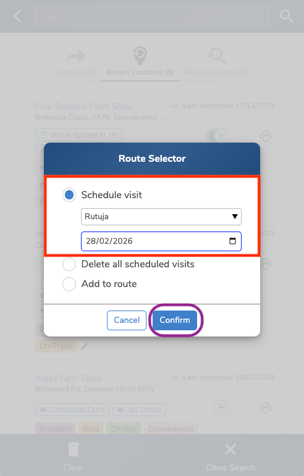
Select the date you plan to visit the location. Then click “Confirm” to add it to your calendar and include it in your route plan.
-
You can view the added location in your list of visits on the “My Calendar” page.
Adding a location to a route using the Nearby option
Steps:
-
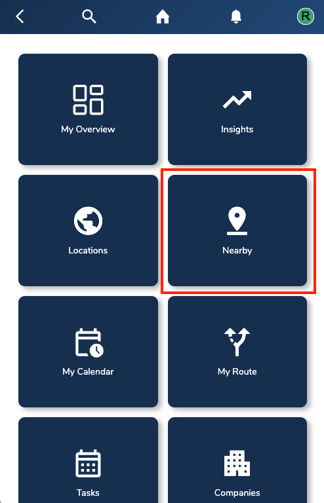
Click on the “Nearby” tab in the home page.
-
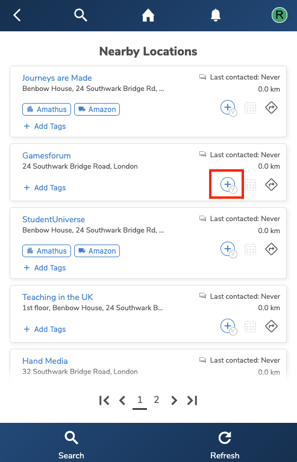
Click the “+” icon next to the location you wish to visit.
-
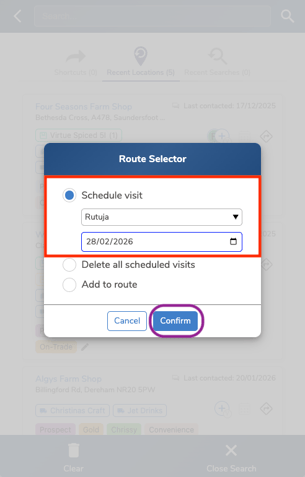
Select the date you plan to visit the location. Then click “Confirm” to add it to your calendar and include it in your route plan.
-
You can view the added location in your list of visits on the “My Calendar” page.
Troubleshooting:
If you are still having any issues, please contact the Bowimi Support Team for help.