![White_Bowimi_Logo_2025.png]](https://help.bowimi.com/hs-fs/hubfs/White_Bowimi_Logo_2025.png?height=40&name=White_Bowimi_Logo_2025.png)
Note: Any changes to a product’s status will automatically update the reports in Bowimi, along with the time of the change and the user who actioned it.
Steps:
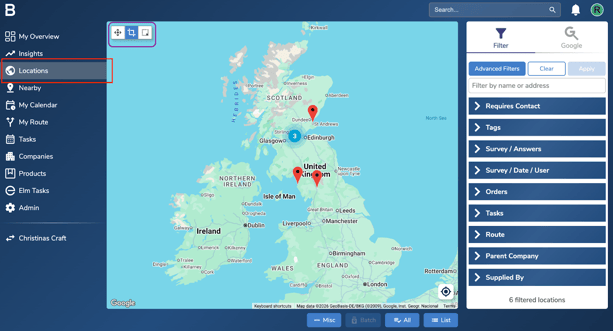
- Go to the ‘Locations’ page in Bowimi and select the locations you want to add or update the product statues for. You can use the filters on the right or the cropping tool in the top-left corner to bulk select locations.
- After filtering the locations, click ‘All’ to select them and next click the ‘Batch’ option beside it.
Here's a video on how to bulk select your locations.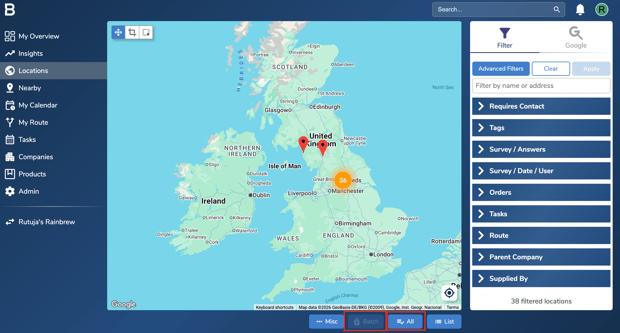
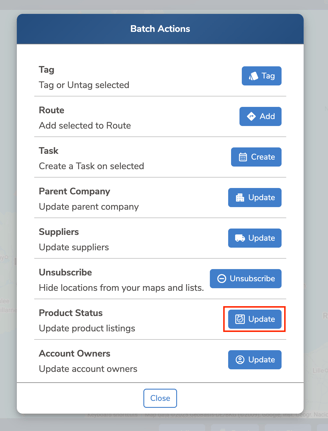
- Go to the ‘Product Status’ option and select the ‘Update’ button in front of it.
- Click on the product you want to add, update or remove the status for.
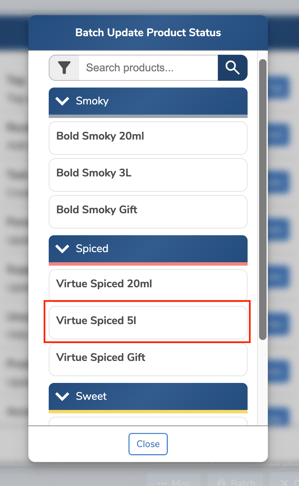
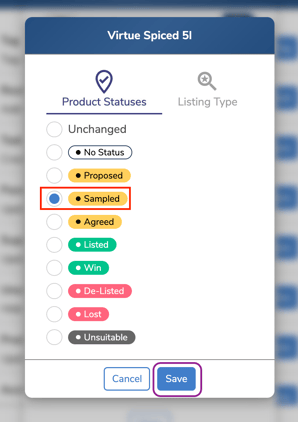
- To Add or Update the product status, select the appropriate status and click ‘Save’. This will apply the status to the selected locations.
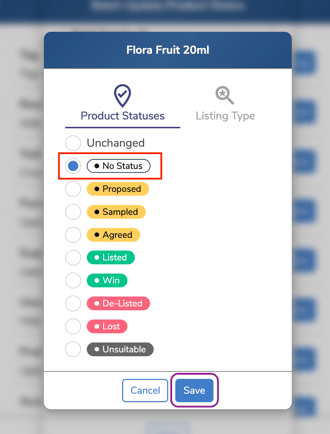
- If you want to Remove product statuses from multiple locations, follow steps 1–4. After selecting the relevant product, choose ‘No Status’ and click ‘Save’ to remove the product status from the selected locations.
Troubleshooting:
If you are still having issues, please contact the Bowimi Support Team for help.