![White_Bowimi_Logo_2025.png]](https://help.bowimi.com/hs-fs/hubfs/White_Bowimi_Logo_2025.png?height=40&name=White_Bowimi_Logo_2025.png)
Steps:
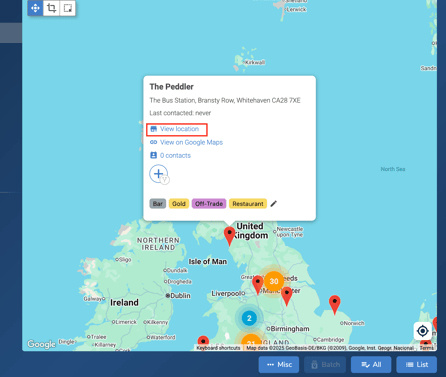
- Go to the Locations page on the platform and select the location you want to add the listing type to.
- Click ‘View Location’ on the location card as seen in the picture below, then click on the ‘Products’ tab under the location name.
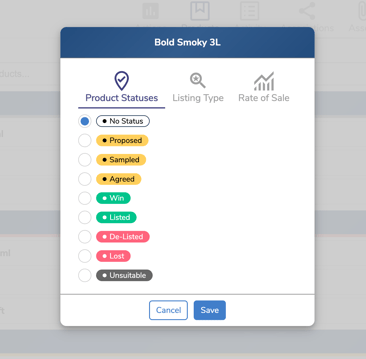
- Click on the product you’d like to update. If needed, update the product status for that location by selecting the appropriate status or leave it as Default if you don’t wish to change it.
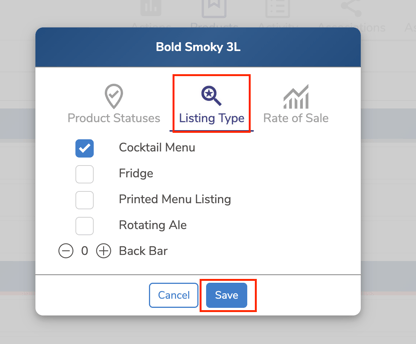
- Click on the ‘Listing Type’ option and select the listing type that best applies to that location and click ‘Save’.
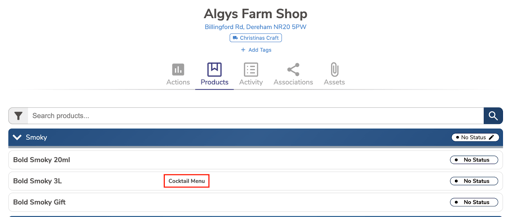
- Once saved, the selected listing type will appear next to the product name, as shown in the example below.
- If you want to Remove a listing type, follow steps 1–3. Then click on the 'Listing Type' option, unselect the required listing type, and click 'Save' to remove it from that location.
Troubleshooting:
If you are still having issues, please contact the Bowimi Support Team for help.