![White_Bowimi_Logo_2025.png]](https://help.bowimi.com/hs-fs/hubfs/White_Bowimi_Logo_2025.png?height=40&name=White_Bowimi_Logo_2025.png)
Steps:
- Go to the Locations page on the platform and select the locations you want to add the listing type to. You can use the filters on the right or the cropping tool in the top-left corner to bulk select locations.
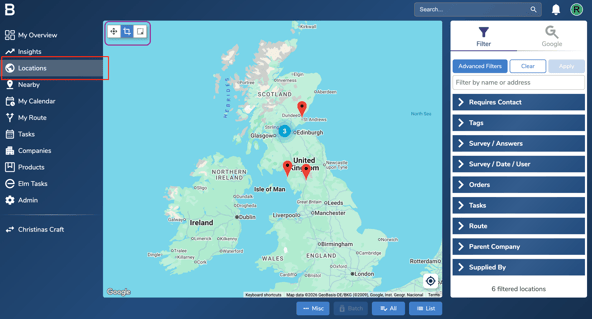
- After filtering the locations, click ‘All’ at the bottom to select them and next click the ‘Batch’ option beside it.
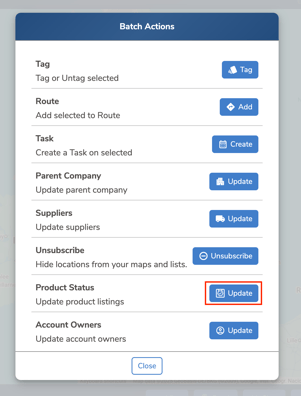
Here's an example on bulk selecting your locations. - Next, go to the ‘Product Status’ option and select the ‘Update’ button in front of it.
- Select the product you would like to add the listing type for. If needed, update the product status by selecting the appropriate status or leave it as Default if you don’t wish to change it.
- Click on the ‘Listing Type’ option and choose the listing type you want to apply to the selected locations. Then select the ‘Add’ option in the box and click ‘Save’. This will apply the listing type to all the selected locations in one go.
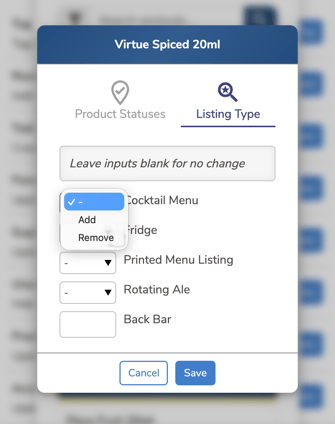
- If you want to remove listing types in bulk, follow the same steps, but select ‘Remove’ from the option above to bulk remove the listing types from the selected locations.
Troubleshooting:
If you are still having issues, please contact the Bowimi Support Team for help.