![White_Bowimi_Logo_2025.png]](https://help.bowimi.com/hs-fs/hubfs/White_Bowimi_Logo_2025.png?height=40&name=White_Bowimi_Logo_2025.png)
Steps:
Adding Tags from the 'Map' view
- Navigate to the Locations page. Select the location you want to add tags to and click the “Add Tag” option.
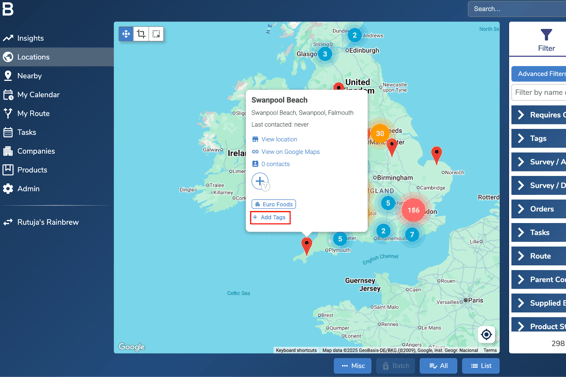
Note: If the location you are tagging already has tags applied to it, there will be an Edit (pencil) icon instead of ‘Add Tags’.
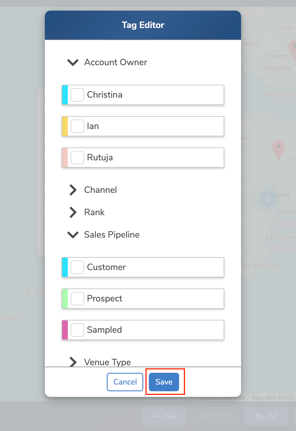
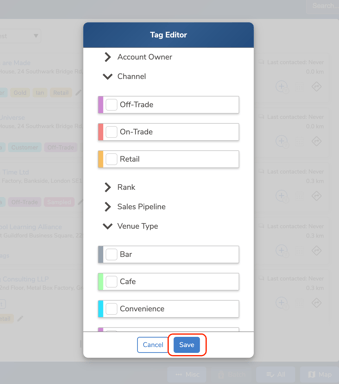
- Select the tags you want to apply to the location, then click “Save” to update the location with your selected tags.
Adding Tags from the ‘List’ View
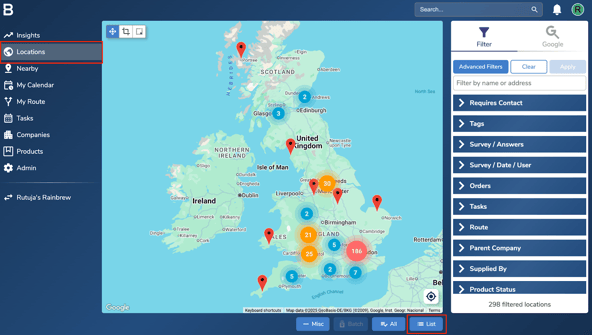
- Navigate to the Locations page in your account and select “List” to view locations in a list view.
- Find the location you would like to add tags to and click “Add Tags”.
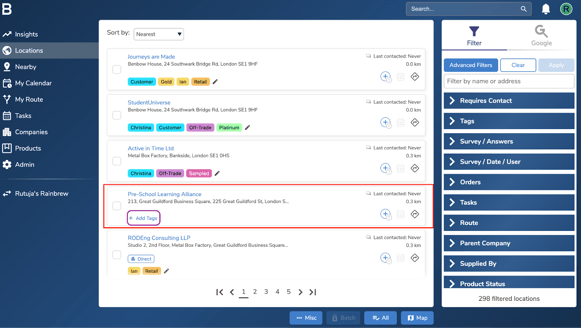
Note: If the location you are tagging already has tags applied to it, there will be an Edit (pencil) icon instead of ‘Add Tags’. - Select the tags you want to apply to the location, then click “Save” to update the location with your selected tags.
Troubleshooting:
If you are still having any issues, please contact the Bowimi Support Team for help.