![White_Bowimi_Logo_2025.png]](https://help.bowimi.com/hs-fs/hubfs/White_Bowimi_Logo_2025.png?height=40&name=White_Bowimi_Logo_2025.png)
Pre requisites:
- You must have Admin/Manager access to create or manage Tag groups.
- If you do not see the admin tab or cannot perform the actions, please contact your leadership team or Bowimi Support.
Note: The survey points can only be applied to Yes/No, Single Choice and Multiple Choice question types.
Steps:
-
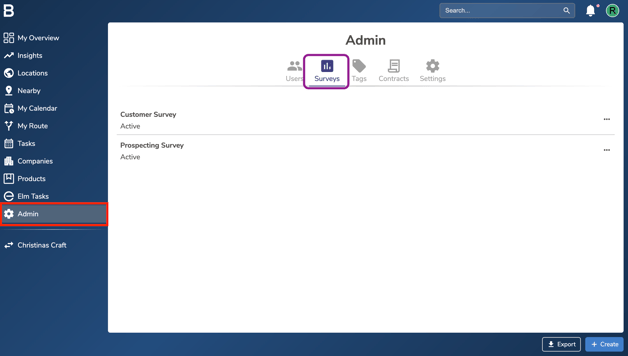
Navigate to the Admin tab in your account and click on 'Surveys'.
-
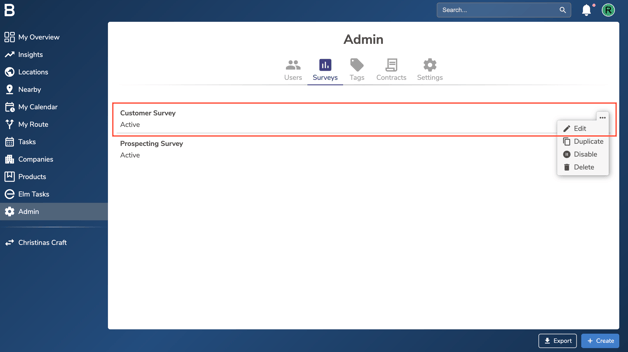
Select the relevant survey by clicking the three dots next to it, then click “Edit”.
-
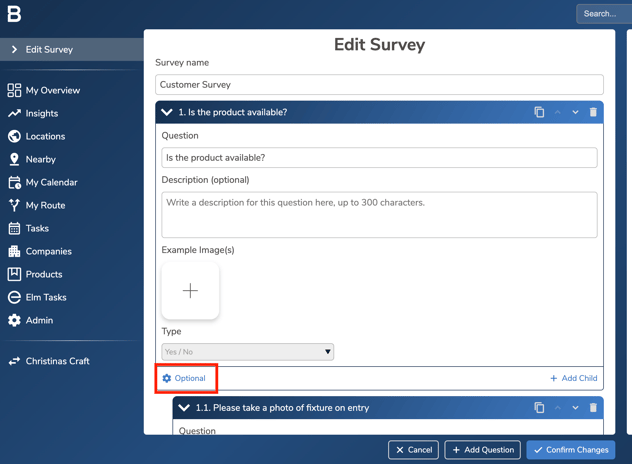
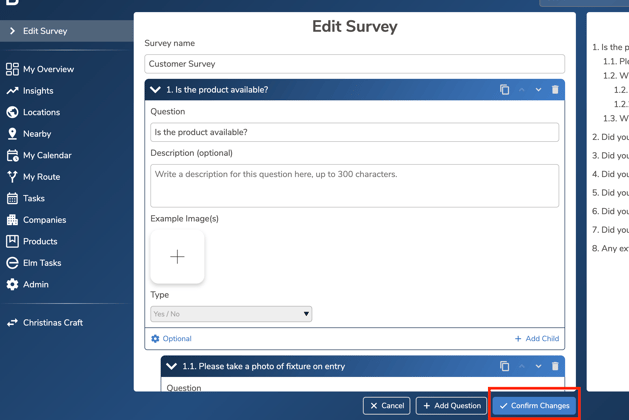
Go to the relevant question and click the “Optional” button in the bottom-left corner of the question.
-
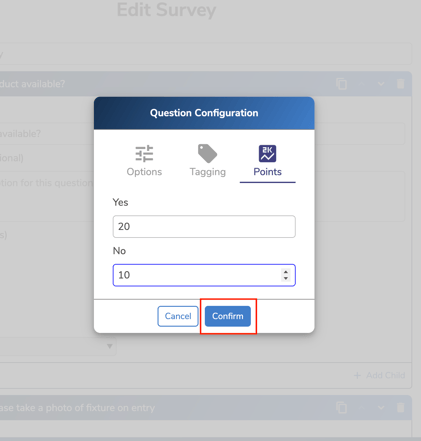
Next, click on the new third tab called “Points”. Assign the points to each answer and click "Confirm" to save the survey points.
-
Once done, click "Confirm Changes" at the bottom to save the survey with updated information.
Note: Survey points will be applied to your historic survey responses, not just the responses completed after the survey responses are added to the questions.
Troubleshooting:
- In case of permissions error please reach out to your Admin or leadership team for accessibility.
- Still having issues?
- Contact the Bowimi Support Team for help.