![White_Bowimi_Logo_2025.png]](https://help.bowimi.com/hs-fs/hubfs/White_Bowimi_Logo_2025.png?height=40&name=White_Bowimi_Logo_2025.png)
Pre-requisites:
- You must have admin access to edit or build surveys.
- If you do not see the admin tab or cannot perform the actions, please contact your leadership team or Bowimi Support.
Steps:
1. Navigate to the Admin tab on your account.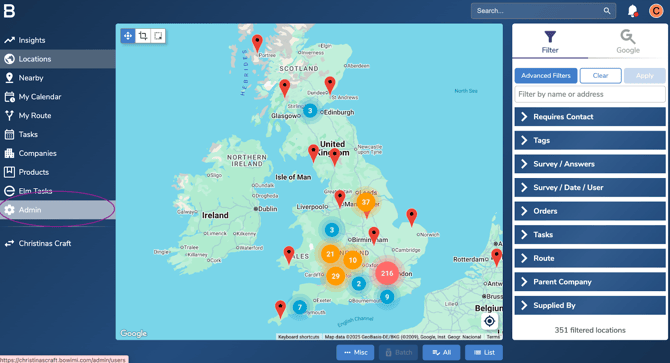
2. On the Survey tab, edit the existing survey by clicking the dots next to the name of the survey.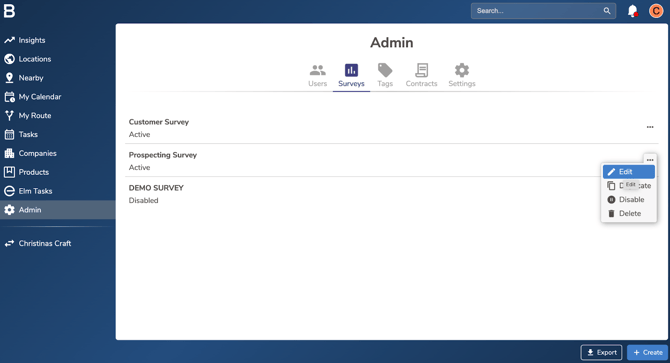
3. Navigate to the question to which the tags need to be set up using the question list.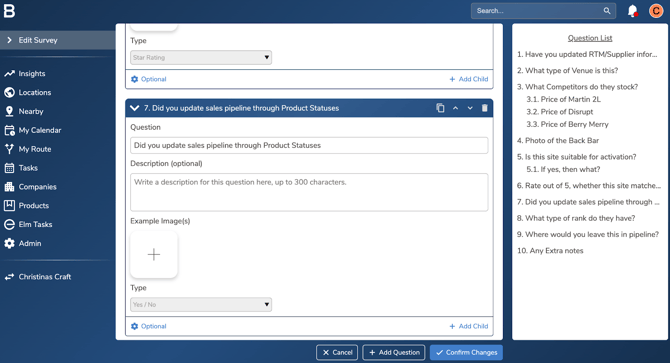
4. Click on the “Optional” button in the question box and select the “Tagging” tab.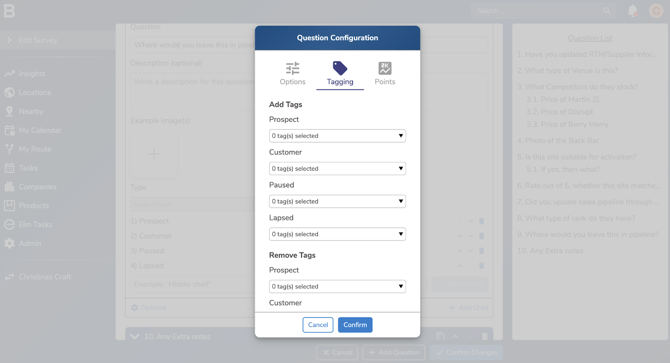
5. To apply tags, Click on the drop down option and select the tag from the group to apply.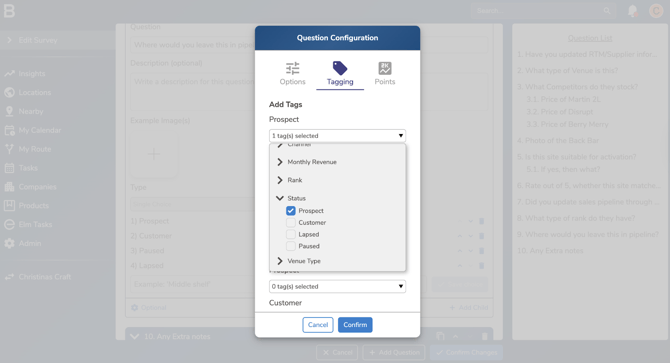
6. Click Confirm to save the tag to the responses.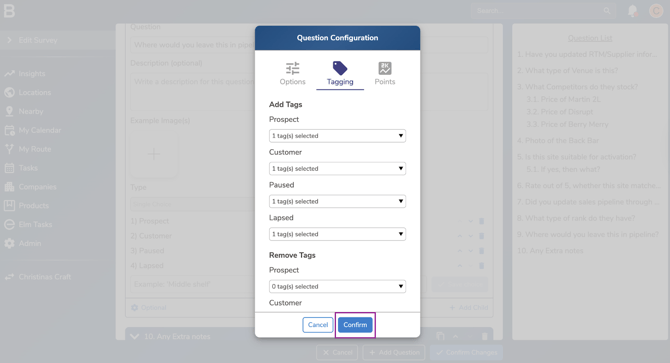
7. Save the changes on the survey by clicking “Confirm Changes”.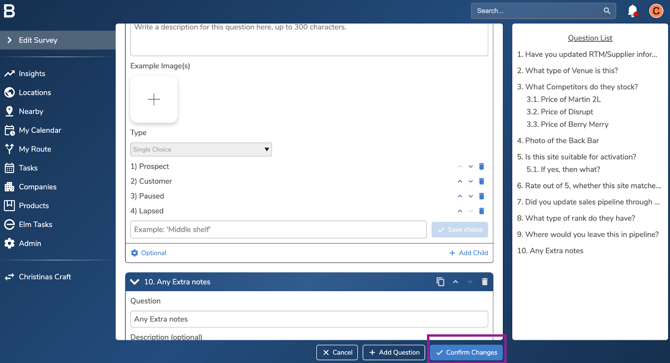
Troubleshooting:
- Can’t link the tags?
- Make sure the tag group is created in the account through the Admin tab.
- Please note that only single choice, multiple choice, or yes/no answer types support auto-tagging.
- Make sure the tag group is created in the account through the Admin tab.
- Still having issues?
- Contact the Bowimi Support Team for help.