![White_Bowimi_Logo_2025.png]](https://help.bowimi.com/hs-fs/hubfs/White_Bowimi_Logo_2025.png?height=40&name=White_Bowimi_Logo_2025.png)
💡 In order to create automations, you will need an active Zapier subscription. For more information on pricing, click here: https://zapier.com/pricing
Pricing will vary substantially depending on the number of zaps you create, how active your team are and how complex you make your zaps.
📹 Intro Video
🏁 Getting Started
Connecting Bowimi
Step 1 - in Bowimi
Add zapier@bowimi.com as a user to your Bowimi account and give it ‘View Activity’ & ‘View Location Contacts’ permissions.
We recommend creating a role called “Zapier” and assigning this role to the user when you create it.
Step 2 - in Bowimi
Go to account profile icon > account set up> +Create key to generate an API Key and click “Copy API Key”.
Step 3 - in Zapier
When connecting your Zapier account to Bowimi, you’ll see this page:
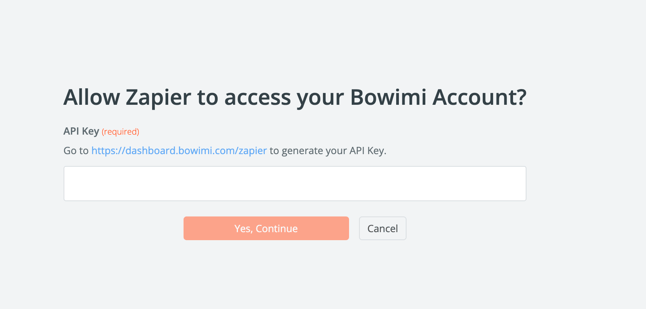
Paste your API key from Bowimi into this text box.
🔫 Triggers
Triggers from Bowimi allow you to create actions in +4000 applications on Zapier. Our triggers currently include:
- Contact Activity
- Contact Added
- Contact Updated
- Order Activity
- New Order
- Pipeline Activity
- Pipeline Changed
- Survey Activity
- New Survey
- Survey Edited
- Tag Activity
- Tag Added
- Tag Removed
- Pipeline Changed
- Task Activity
- Task Created
- Task Updated
- Task Resolved
The exact data supplied with each trigger varies (eg. product details with an order trigger, or images with a survey trigger) but the following items are consistent across all triggers:
- Location Details (except where a task is created without a location) including tags & contacts.
💭 Example Zaps
- Creating and sending invoices
- Sending emails (immediately or after a delay)
- Sending notifications to Slack or Teams
- Creating and updating events in your calendar
- Updating your CRM (Hubspot, Salesforce, Pipedrive, Zoho etc)
- Saving photos in Google Drive or Dropbox
- Updating a Google Sheet or Excel File
📚 Resources
Here are some useful quick-reads to help you get started with Zapier:
https://zapier.com/help/create/basics/learn-key-concepts-in-zapier
https://zapier.com/blog/zapier-internal-apps-powerful-workflows/
Troubleshooting:
If you are facing any issues, please contact the Bowimi Support Team for help.