![White_Bowimi_Logo_2025.png]](https://help.bowimi.com/hs-fs/hubfs/White_Bowimi_Logo_2025.png?height=40&name=White_Bowimi_Logo_2025.png)
Pre requisites:
-
You must have Admin/Manager access to create or manage Breww integration.
-
If you do not see the admin tab or cannot perform the actions, please contact your leadership team or Bowimi Support.
Steps:
-
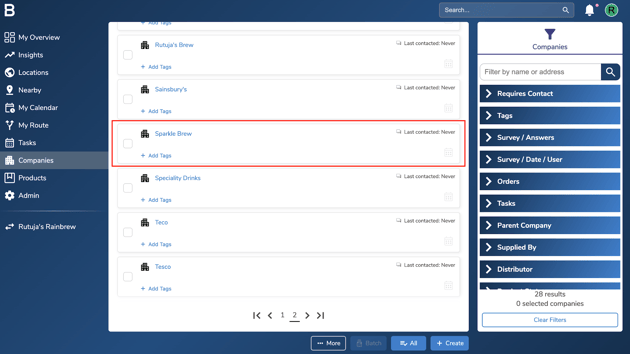
Navigate to the company you’d like to import your orders into.
-
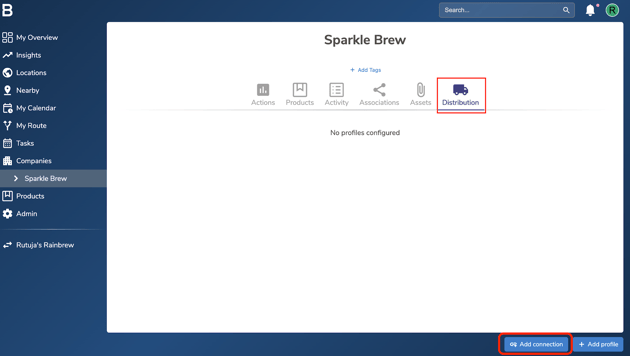
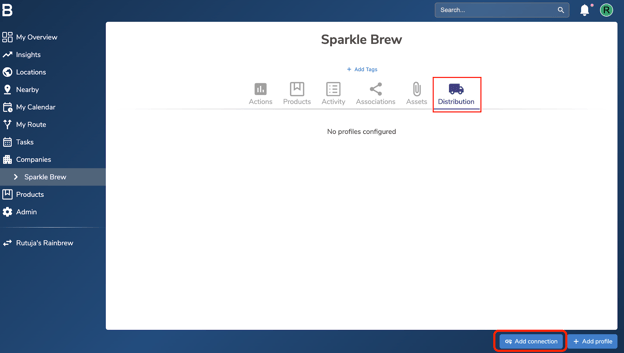
Head to the “Distribution” tab and click “Add connection” at the bottom of your screen.
-
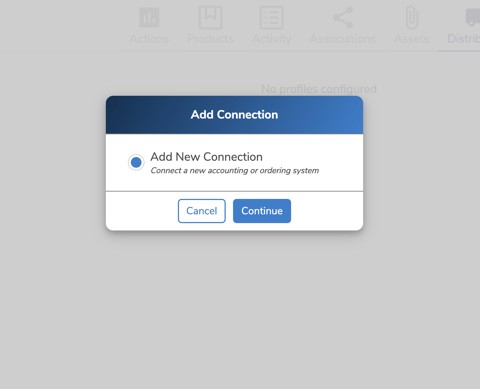
Select “Add New Connection” then click “Continue”.
-
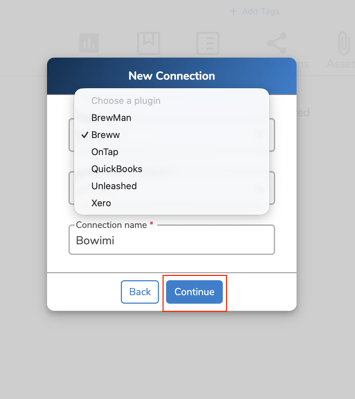
Choose “Breww” from the list of options and give a name to the connection. Once done, click "Continue".
-
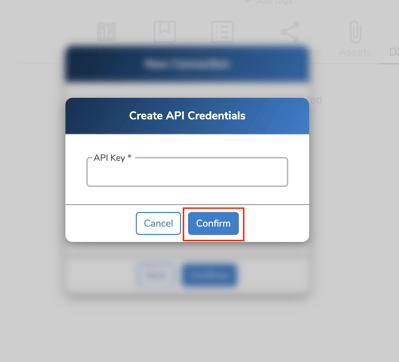
You’ll need to retrieve your API key from Breww and enter it in the pop-up box. You can find step-by-step instructions on how to do this here.
Once you’ve entered the API key, click “Confirm.”
-
Navigate back to your company’s “Distribution” tab and click “Add Connection” at the bottom.
-
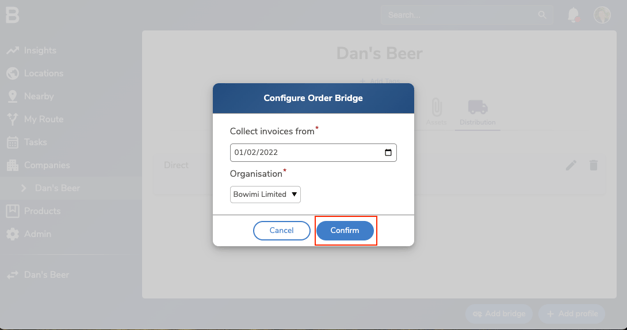
Select the new Breww connection you just added and click “Confirm”.
Next, select the date from which you’d like to import your invoices, along with the organisation and click "Confirm".
-
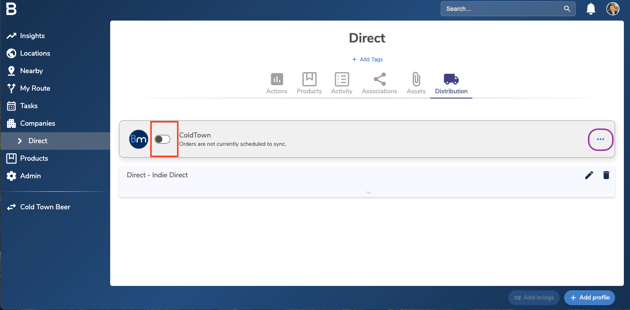
Switch the toggle to the right to enable the connection. Next click on the "three dots" in front of it.
-
You can export your products to a spreadsheet and import them into Bowimi to make product matching much faster.
In Breww, go to Products and click Export, then select CSV as the export format.
-
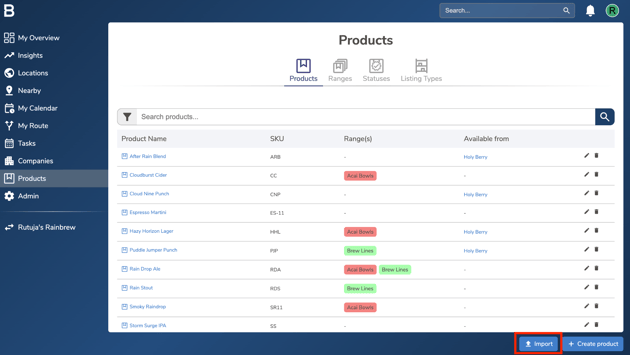
Once exported, you can import the file into Bowimi by navigating to Products in the main menu and clicking Import at the bottom of the screen.
-
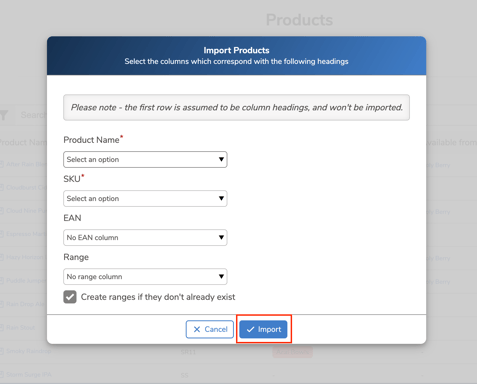
Then, simply map the columns to match those in your spreadsheet and click “Import.”
-
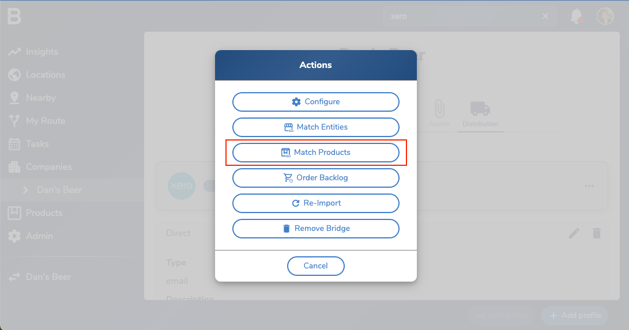
Navigate back to your company’s “Distribution” tab and click “…” in front of the integration and choose “Match Products”.
-
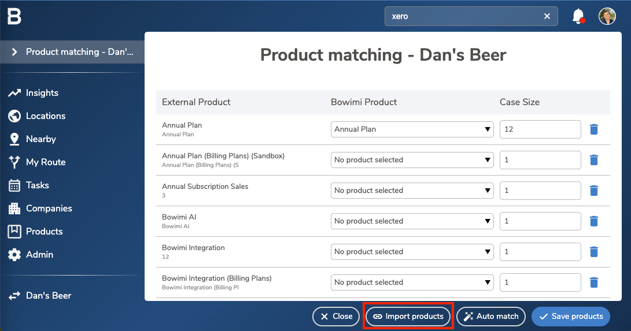
Next, click “Import Products” at the bottom to import your products from Breww.
-
Click “Auto match” to automatically match Bowimi and Breww products if they have the same SKU in both platforms. Then click “Save Products” when you’re finished.
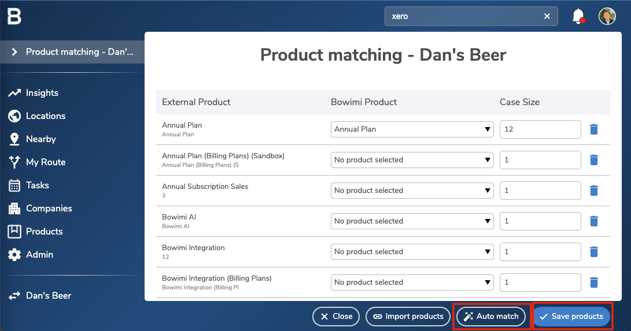
NOTE: If a product in your Breww account contains multiple units of a product in your Bowimi account, use our “Case Size” column to reflect that.
For example, the product in Breww could be called “Absolut Vodka 70cl x 6” and in Bowimi could be called “Absolut Vodka 70cl”. In this case you’d match these two products with each other and put the number 6 into the “Case Size” field.
-
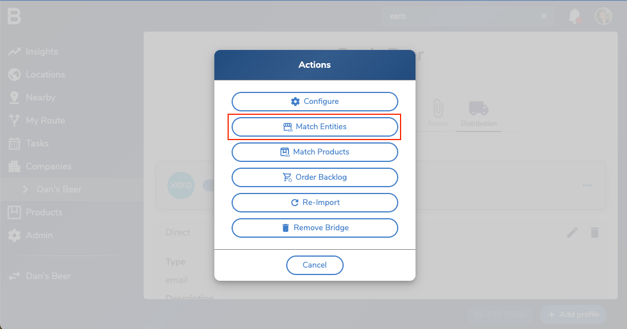
Once done, head back to the “Actions” modal in the previous step and choose “Match Entities”.
-
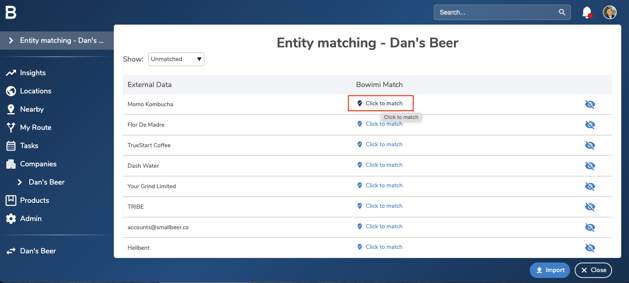
Click “Click to match” to match each customer from Breww to a customer in Bowimi.
-
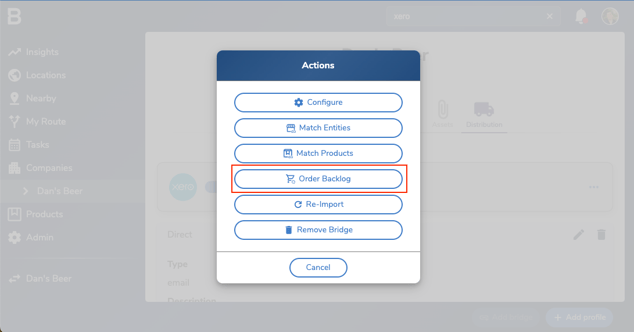
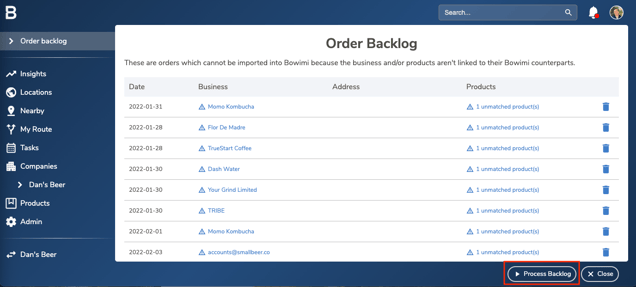
Once you have matched the entities, head back to the “Actions” modal in the previous step and choose “Order Backlog”, this is where all of your pre-processed orders live.
-
Match the products and customers and once done click "Process Backlog" at the bottom to allow orders to be imported.
Troubleshooting:
-
In case of permissions error please reach out to your Admin or leadership team for accessibility.
-
Still having issues?
- Contact the Bowimi Support Team for help.