![White_Bowimi_Logo_2025.png]](https://help.bowimi.com/hs-fs/hubfs/White_Bowimi_Logo_2025.png?height=40&name=White_Bowimi_Logo_2025.png)
Steps:
-
Go to the Locations tab in your Bowimi account.
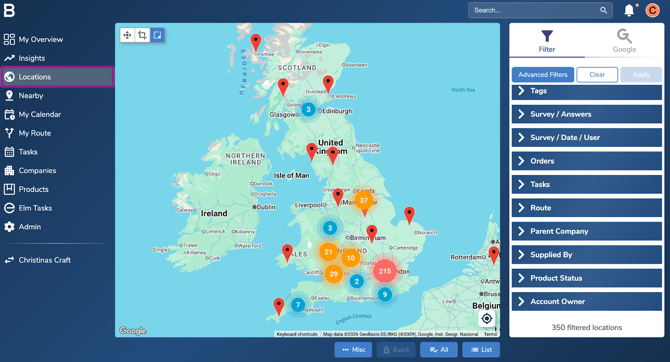
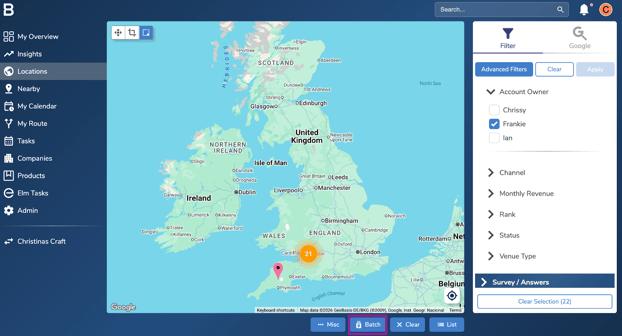
- Click on the Explore button to access the filtering options. If on Desktop, simply use the right side panel to access the filter tab.
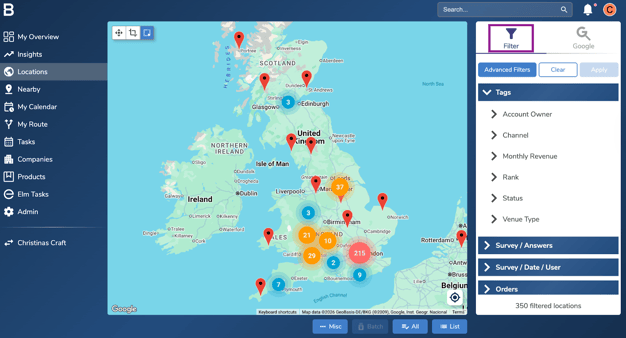
- On the Tag filter, select the tag associated with the locations you would like to migrate or move to another tag.
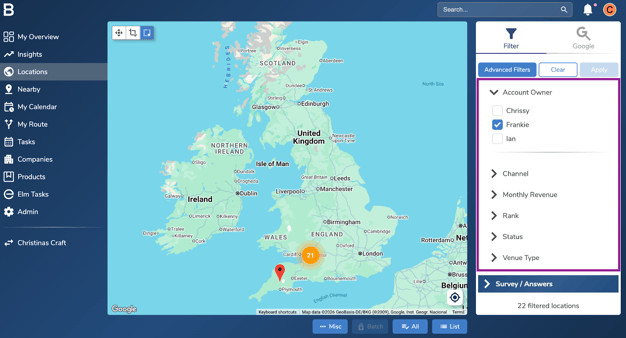
- To work with all results, select “Select all” or use the map tool on the top corner to filter further.
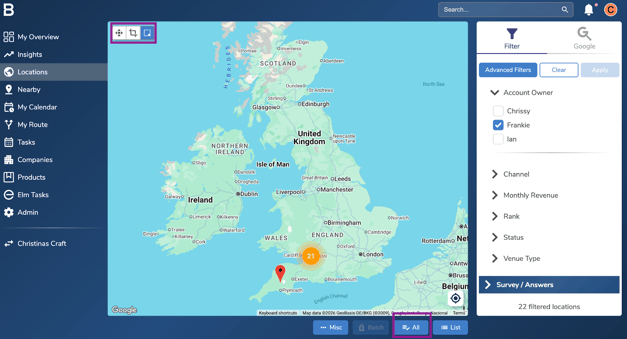
- Select Batch at the bottom of the screen.
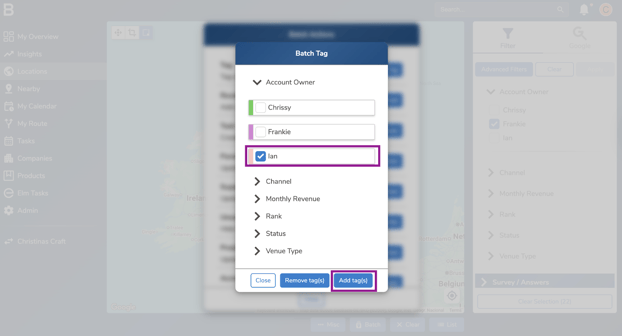
- On the Batch Tag view, select the desired tag to label the selected sites and click "Add Tags" to save the selection.
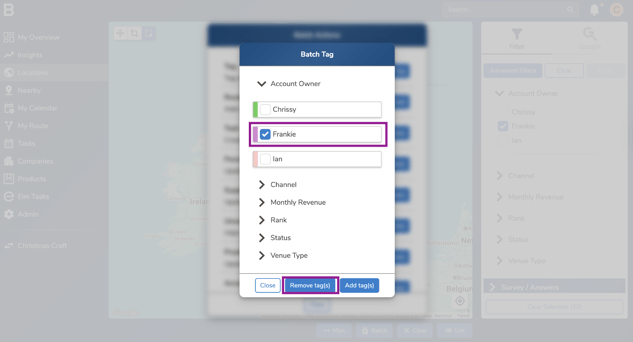
Note: Alternatively, you can remove the previous tag from the selected sites by repeating the above steps and clicking “Remove tag” from the batch option.
Troubleshooting:
- Still having issues?
- Contact the Bowimi Support Team for help.