![White_Bowimi_Logo_2025.png]](https://help.bowimi.com/hs-fs/hubfs/White_Bowimi_Logo_2025.png?height=40&name=White_Bowimi_Logo_2025.png)
Steps:
-
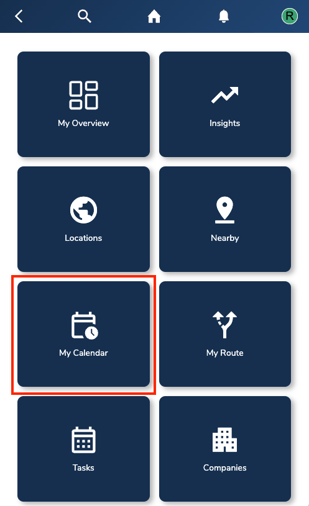
Go to the “My Calendar” tab on your account.
-
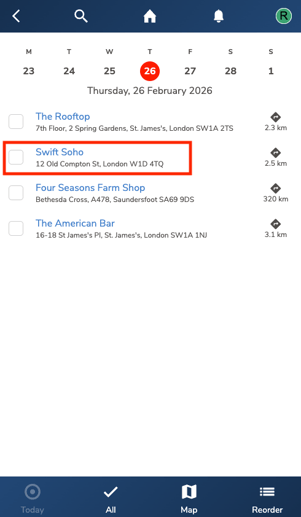
Click on the location for which you would like to complete a visit/survey for.
-
Click on “View Location”.
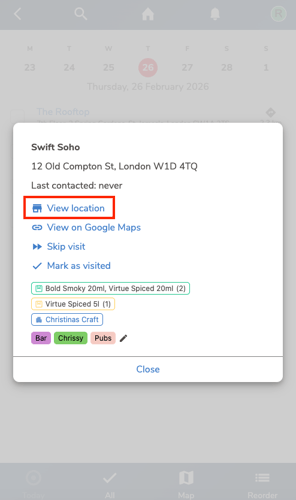
Note: If you have already logged in a survey for that site, you can click “Mark as Visited” to mark that location as visited. Alternatively, if you want to skip the location, you can select “Skip Visit”.
-
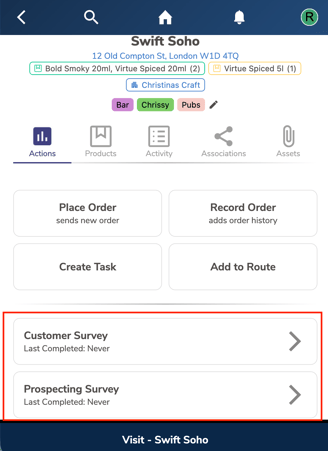
Select the relevant survey you would like to complete.
-
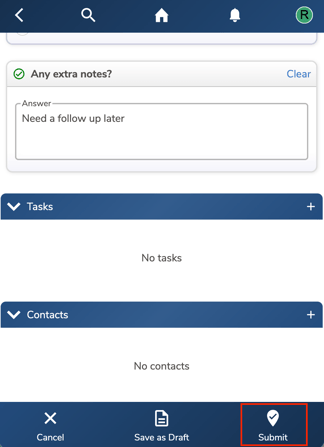
Fill in the survey and click “Submit” once completed to record the visit.
-
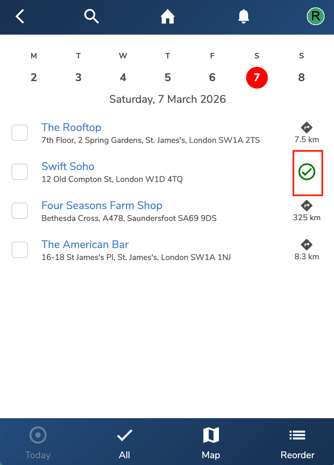
Once submitted, a tick will appear next to the location to indicate that it has been visited.
Troubleshooting:
If you are still having issues, please contact the Bowimi Support Team for help.