![White_Bowimi_Logo_2025.png]](https://help.bowimi.com/hs-fs/hubfs/White_Bowimi_Logo_2025.png?height=40&name=White_Bowimi_Logo_2025.png)
How (and why) to use them
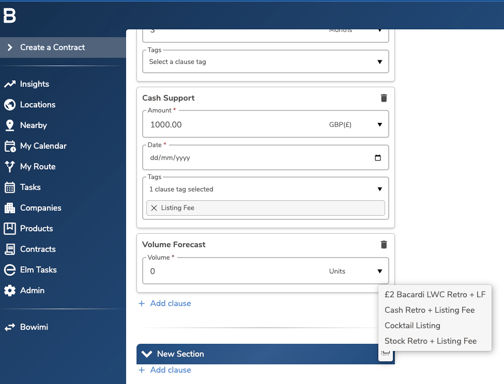
Users can quickly build contracts by using section templates, to add a section template, click on the button on the right side of the "New Section" bar. As you can see below, when clicked, it will show the user a list of available templates to choose from.
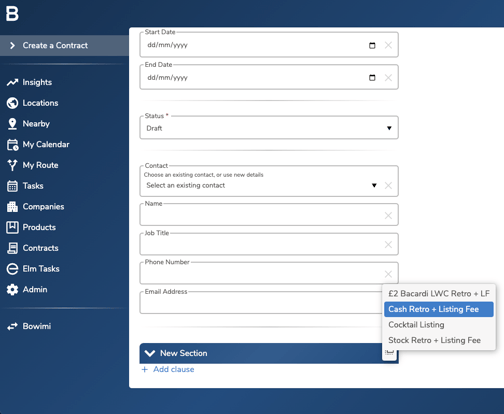
Users can add as many templates as they need to a single contract (e.g. you can add the "Cash Retro + Listing Fee" one three times, then add the "Cocktail Listing" one to the same contract).
Once you've added a template, you can now replace or add the relevant fields to customise it for this contract.
How to create templates
Before creating your first template, please think carefully about what templates will create the most impact for your team. Think carefully about which fields you will want to leave blank, and which fields you'll want to pre-fill because they are always configured that way. Here are some examples:
Generic Templates
These templates are deliberately vague and can follow a pattern which is consistent across all of your contracts. A good example would be "Cash Retro + Listing Fee" and "Stock Retro + Free Stock", these would look like:
Cash Retro + Listing Fee
- Cash Retro Support (pre-fill the "reward", "currency", "condition" and "payout frequency" with common values)
- Cash Support (pre-fill the "amount", "currency" and "tags", do not pre-fill the "date" field, it's rarely a good idea to pre-fill the date field)
- Product Filter (or range filter, do not pre-fill if you're doing a generic template, only pre-fill if you make a lot of contracts for a particular product or brand, and make sure you also have a generic template if you've made ones specific to certain products)
- Distributor Condition (do not pre-fill apart from if you are constantly adding the same distributor(s))
- Volume Forecast (it's always recommended to include a volume forecast for forecasting purposes, especially if there's no minimum volume condition)
Very Specific Templates
These templates are specific to certain products, distributors, or any combination of clauses which need to be used together with very specific terms. A good example of this would be "£2 Bacardi LWC Retro + LF", this could look like:
- Cash Retro Support (pre-fill the "reward", "currency", "condition" and "payout frequency" with common values)
- Cash Support (pre-fill the "amount", "currency" and "tags", do not pre-fill the "date" field, it's rarely a good idea to pre-fill the date field)
- Product Filter (pre-fill to the specific products or brands)
- Distributor Condition (pre-fill to the specific distributors)
- Custom Condition (pre-fill with the specific text)
- Listing Type Condition (pre-fill)
- Volume Forecast (it's always recommended to include a volume forecast for forecasting purposes, especially if there's no minimum volume condition)
Now, let's create the templates.
First, head to "Admin" > "Contracts" and under the "Section Templates" header you'll see all of your templates. Each template can be edited or deleted.
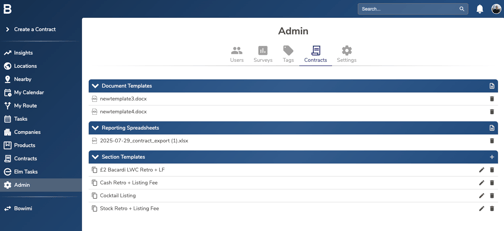
Click the "+" button on the "Section Templates" bar to create a section template.
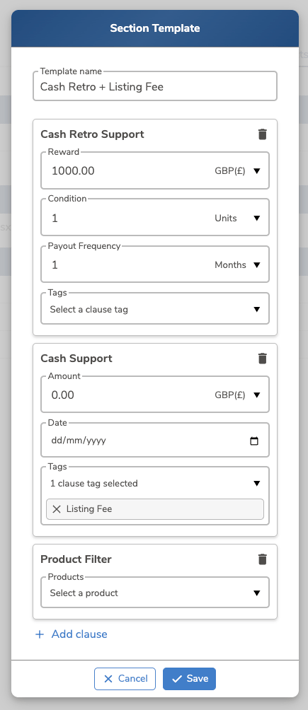
Give the template a name, then add the clauses. When adding clauses, remember:
- Don't pre-fill dates unless you explicitly payout cash and stock fees on the same exact date for all of your contracts.
- Products, Ranges and Distributors should be left blank unless you're making specific templates.
- Numbers are easy to replace for your team, so use the most common values to save your team time (e.g. if most of your retros are £1 per bottle, paying quarterly, then pre-fill a Cash Retro Support clause with Reward = 1, Currency = GBP, Condition = 1 unit, Payout Frequency = 3 months).
- Use "Tags" where possible to explicitly state what's a "Listing Fee", "Marketing" or "Value in Kind".
- For generic free text, add a custom condition.
- Add a volume forecast if you don't use minimum volumes because forecasting volumes can be useful.
- Any clauses which are used in all contracts should be in templates, whether pre-filled or not.
Troubleshooting:
If you face any issues, please contact the Bowimi Support Team for help.