![White_Bowimi_Logo_2025.png]](https://help.bowimi.com/hs-fs/hubfs/White_Bowimi_Logo_2025.png?height=40&name=White_Bowimi_Logo_2025.png)
Steps:
-
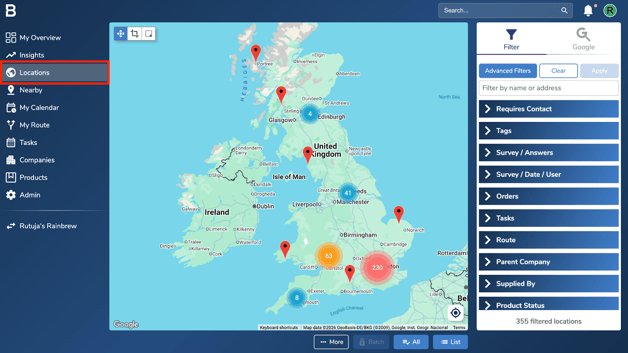
Navigate to the Locations page in the platform.
-
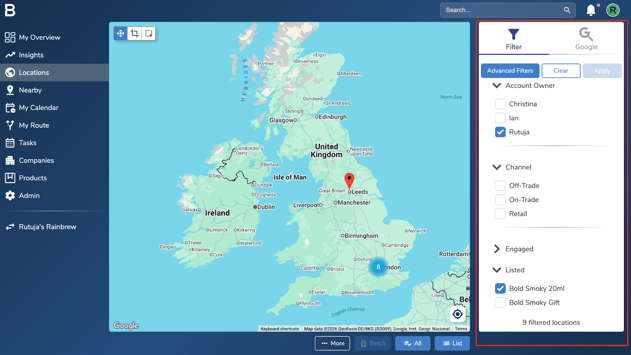
Use the filters on the right-hand side to narrow down and select the locations you want to save.
-
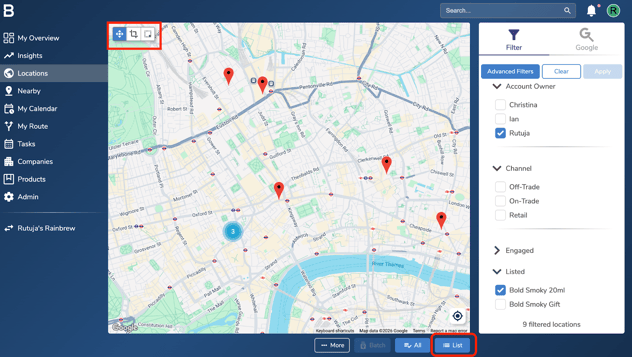
You can select locations using the cropping tool at the top, or switch to a list view by clicking the “List” option at the bottom.
-
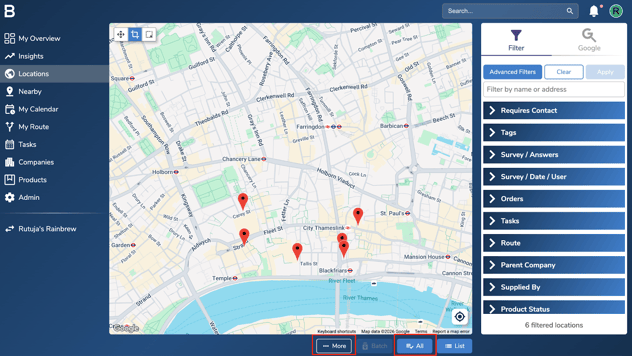
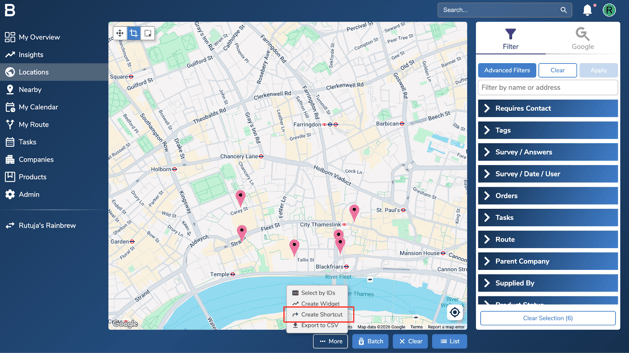
Once you’ve selected the relevant locations, click “All”, then click “More” at the bottom.
-
Next click “Create Shortcut”.
-
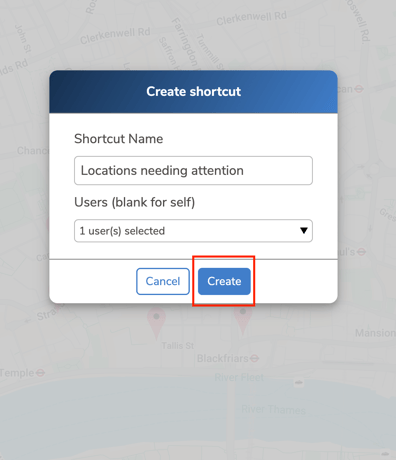
Name the shortcut, assign it to yourself or another user if needed, and click “Create.”
-
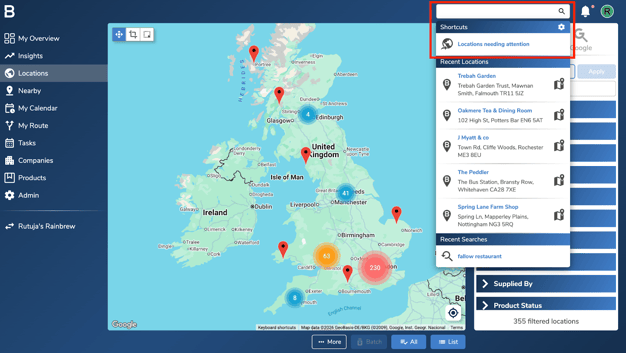
To find the shortcut you’ve just created, click on the search bar in the top-right corner and it will be pinned at the top.
-
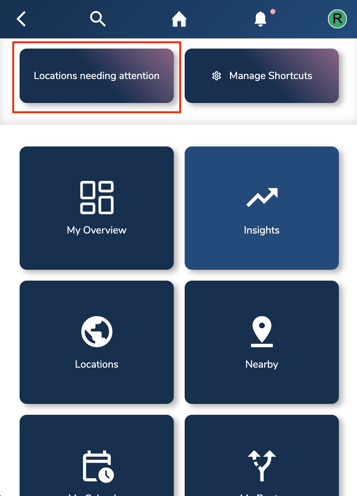
You can also view the shortcut on the mobile app, where it will be pinned at the top for you to access easily.
Troubleshooting:
If you are still facing any issues, please contact the Bowimi Support Team for help.