![White_Bowimi_Logo_2025.png]](https://help.bowimi.com/hs-fs/hubfs/White_Bowimi_Logo_2025.png?height=40&name=White_Bowimi_Logo_2025.png)
Steps:
-
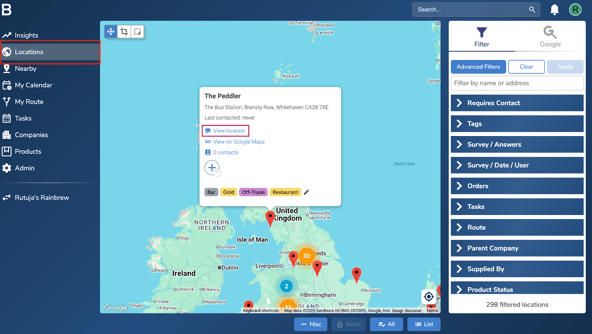
Navigate to the ‘Locations’ page in your account. Find the location you want to survey, then click on the “View Location” button.
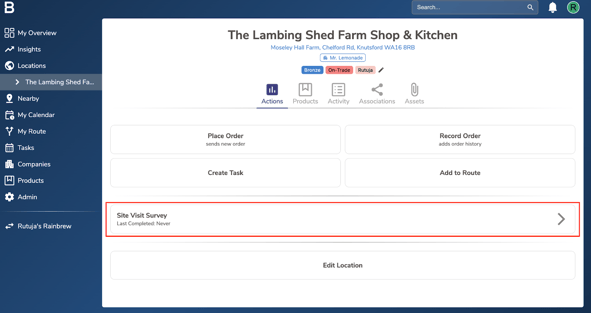
- Click on the relevant survey you’d like to complete.
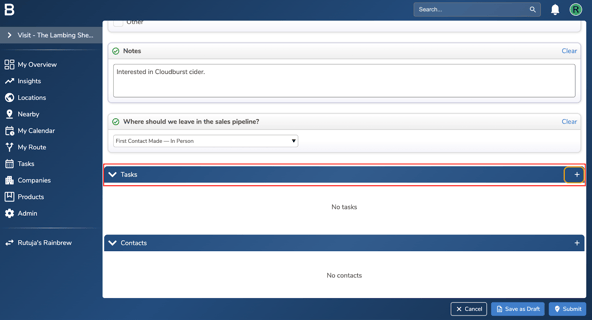
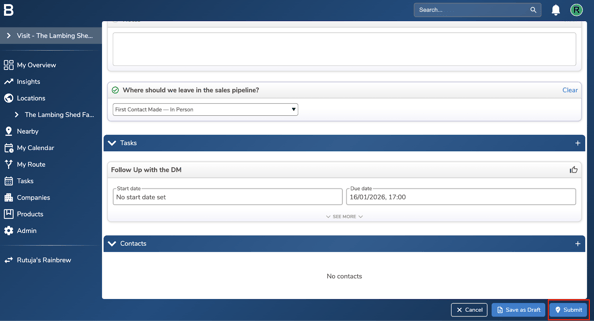
- Fill in the survey, and at the end you’ll find a “Tasks” option. To create a task, click on the “+” icon.
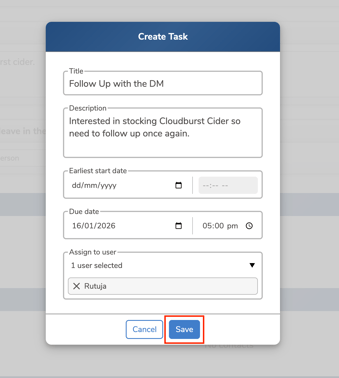
- Fill in the task details, assign it to the relevant user, and click “Save” to save the task.
Note:
i. Earliest start date allows you to set a time and day, before which the task cannot be resolved. This is handy if a task has to be done on a specific day and no sooner to avoid mistakes.
ii. You can assign the task to yourself or any other member of your team in the “Assign to User” column.
- Fill in the remaining parts of the survey if required, then click “Submit” to save the survey and create the task at the same time.
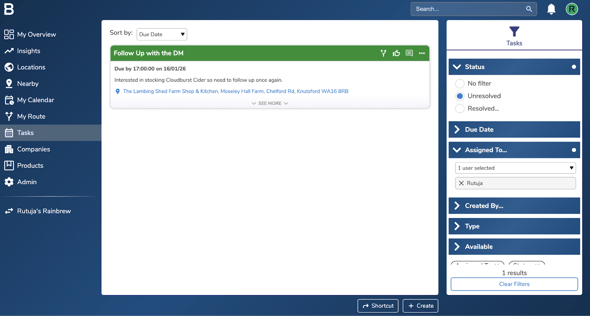
- You will find the task created in the ‘Tasks’ page of your account.
Troubleshooting:
If you are still having any issues, please contact the Bowimi Support Team for help.