![White_Bowimi_Logo_2025.png]](https://help.bowimi.com/hs-fs/hubfs/White_Bowimi_Logo_2025.png?height=40&name=White_Bowimi_Logo_2025.png)
Pre-requisites:
- You must have Admin or Manager access to create Tags/Tag Group.
- If you do not see the admin tab or cannot perform the actions, please contact your leadership team or Bowimi Support.
Steps:
How to create a Tag Group
- Navigate to the “Admin” page in your account and click on the “Tags” tab.
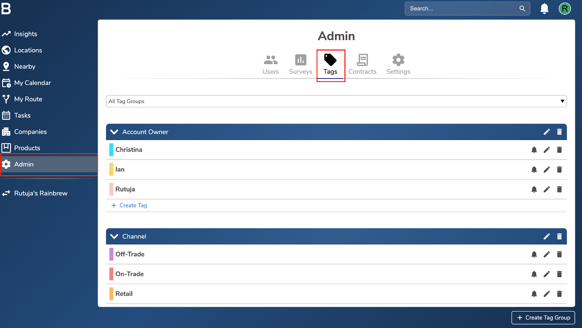
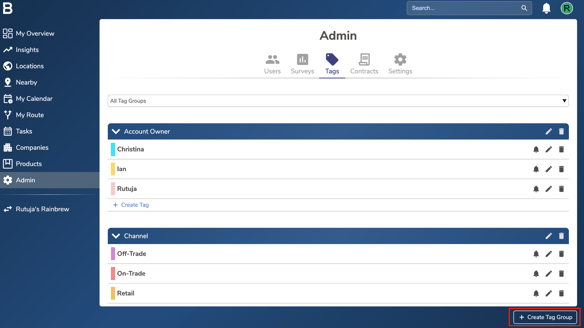
- Click on “Create Tag Group” at the bottom.
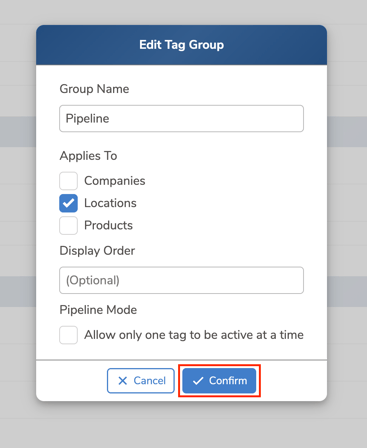
- Enter a name for the tag group, select the option to which the tag group should be applied, and click “Confirm”.
Note -
- If you select ‘Location’, the tag group will be visible under Tags in the Admin tab.
- If you select ‘Product’, the tag group will be available in the Products tab when editing a product information.
- If you select ‘Companies’, the tag group will be available in the Companies tab under each company name.
How to create a Tag
- Navigate to the “Admin” page in your account and click on the “Tags” tab.
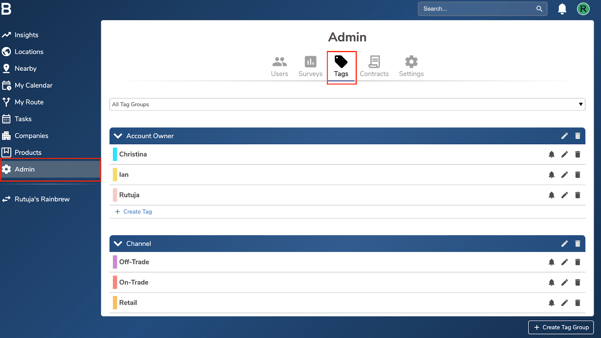
- Find the group you want to create a tag in and click “Create Tag”.
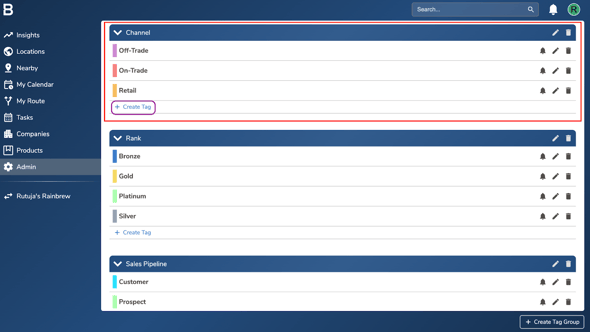
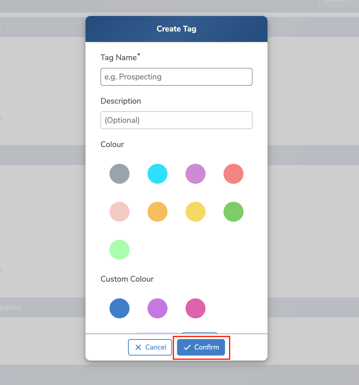
- Name the tag and choose a colour so it’s easily identifiable. Once you’re happy with it, click “Confirm” to create the tag, then repeat the same process for any additional tags you’d like to set up.
Troubleshooting:
If you are still having any issues, please contact the Bowimi Support Team for help.