![White_Bowimi_Logo_2025.png]](https://help.bowimi.com/hs-fs/hubfs/White_Bowimi_Logo_2025.png?height=40&name=White_Bowimi_Logo_2025.png)
Pre requisites:
1. You must have Admin/Manager access to create or manage Tag groups.
2. If you do not see the admin tab or cannot perform the actions, please contact your leadership team or Bowimi Support.
Steps:
-
Navigate to Admin Tab on the account.
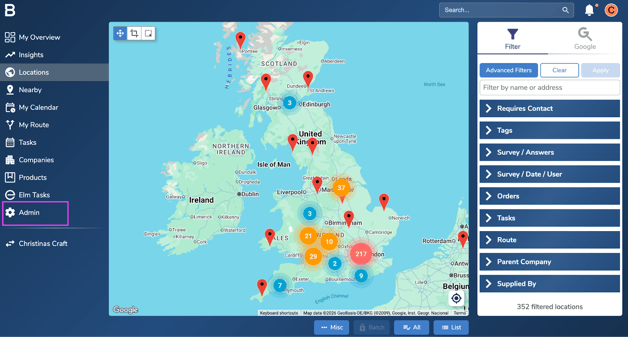
- Go to the Tags tab to access the current tags active on the platform.
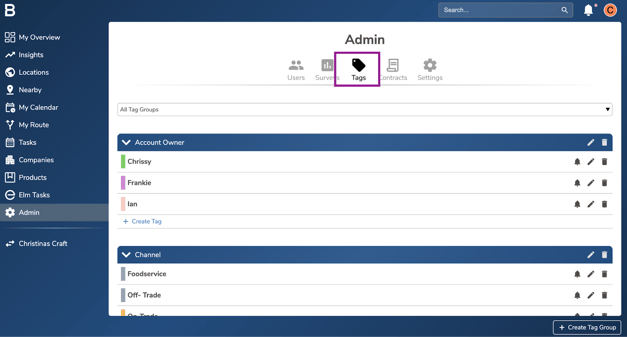
- On the Tags page, select the ‘Create tag group’ located at the bottom right corner of the page.
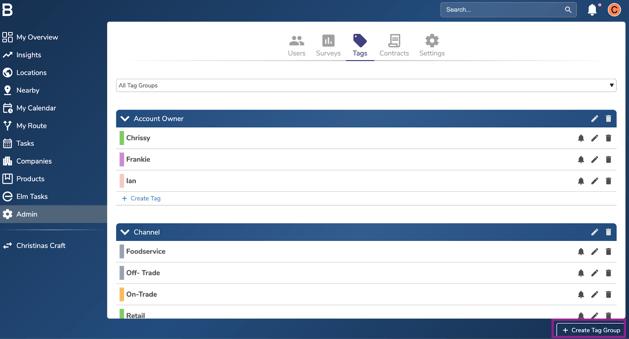
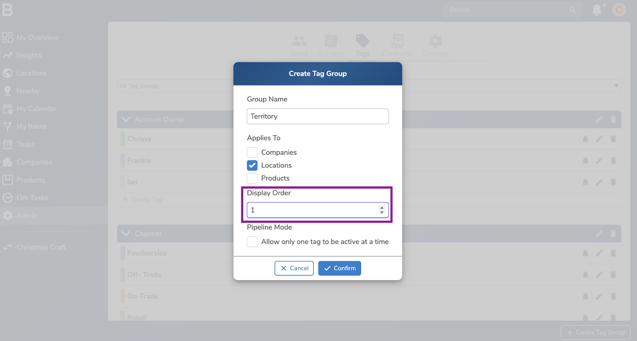
- In the pop up box, add the “Group Name” to the tag group and configure it to be visible on the Locations/Companies/Products.
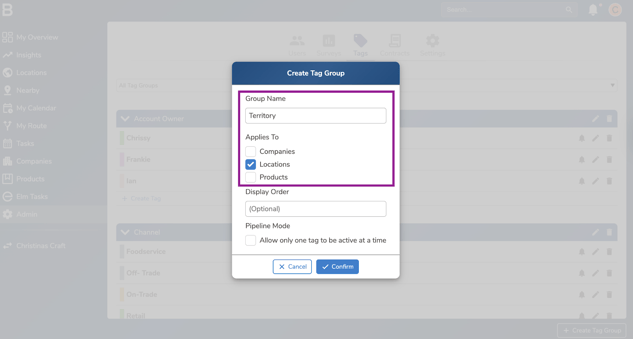
- Set the “Display Order” if you prefer to order how your tag groups display in a list. This ordering also applies to when you are filtering.
- Select “Pipeline Mode” if you prefer only one tag from a tag group to be applied to a location. Adding another tag from the pipeline group will remove the first tag.
Note: This is most commonly used for pipelines (hence the name) where you can set a location status. However, it can be used in any situation where a tag is mutually exclusive.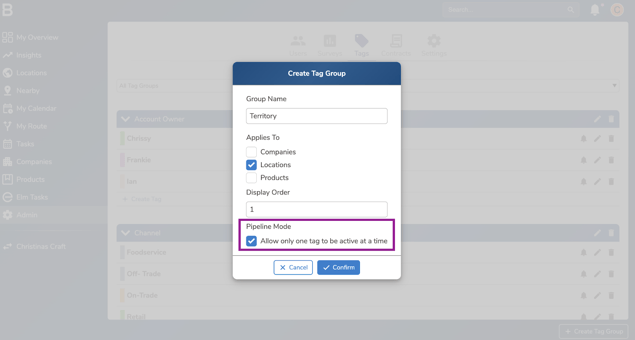
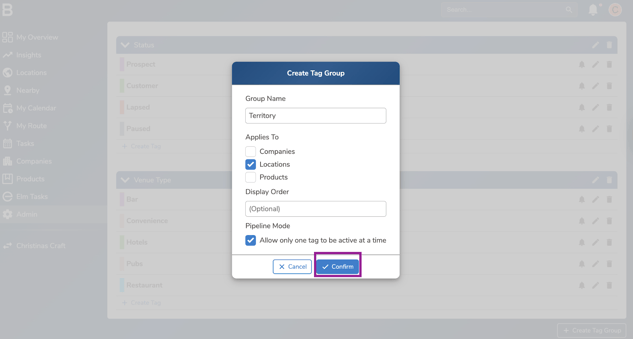
- Click “Confirm” to set the category live and add the tags under the new tag group set.
Troubleshooting:
- In case of permissions error please reach out to your Admin or leadership team for accessibility.
- Still having issues?
- Contact the Bowimi Support Team for help.