![White_Bowimi_Logo_2025.png]](https://help.bowimi.com/hs-fs/hubfs/White_Bowimi_Logo_2025.png?height=40&name=White_Bowimi_Logo_2025.png)
Steps:
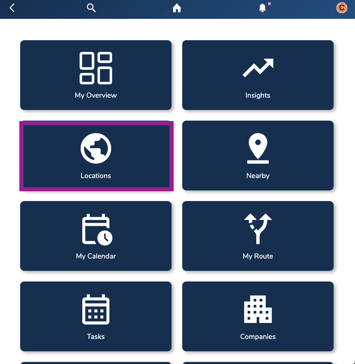
- Select the 'Locations' tab.
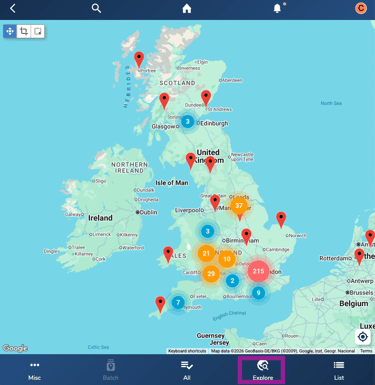
- Click on the 'Explore' button to access the filtering options. If on Desktop, simply use the right side panel to access the filter tab.
- Choose the Filters:
-
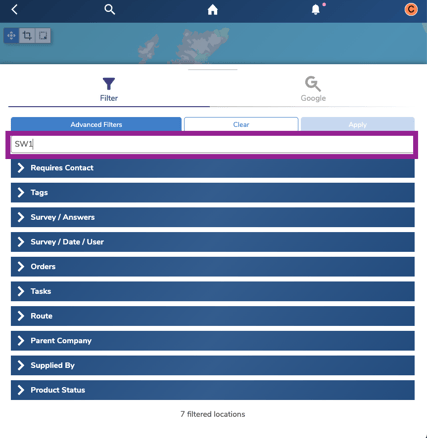
Location Search Bar: You can search for a specific location or even a postcode using the search bar E.g. Searching for ‘SW1’ in the search input will return any locations where SW1 is part of their postcodes.
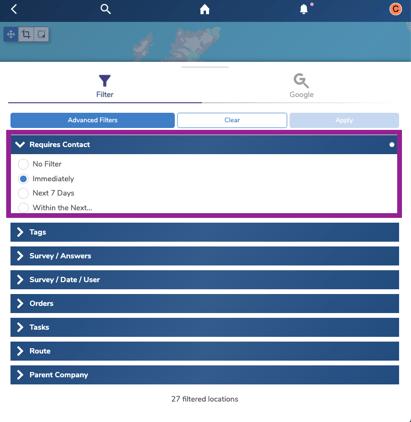
- Requires Contact: The requires contact filter allows you to filter for locations that currently have a tag that requires contact within a set time period. You can then also filter for the time frame in which they require contact. Note: This should be configured through tags by the admin user for you to filter.
- Tags: You can use the ‘Tag’ filter to filter your locations by any of the tags you have created. You can select just one or multiple tags to filter depending on what you are trying to filter.
Use case: You could select one of your account manager tags and then your stocked status tag to see all of the current stockist for a specific account manager. You would then see the number of locations that matched that filter in the bottom right under ‘Filtered locations’ and then even export this list of locations to excel.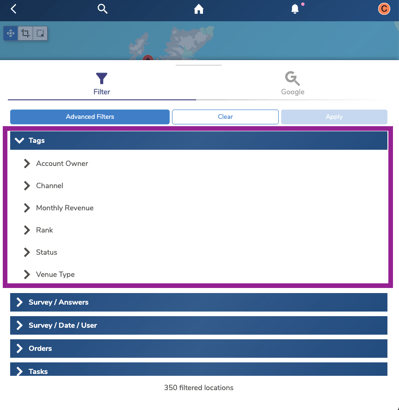
- Survey / Answers: Bowimi has a strong focus on making in the field data entry as easy as possible for sales reps through surveys and this filter lets you filter your locations by which surveys have been submitted against them and then also by the answers to those questions.
Use Case: Say you have a ‘New Account’ survey that has a question that asks if the location is interesting in stocking/ sampling your product with a yes or no answer. You could use the Survey / Answers filter to filter all of your locations by ones where this new account survey has been submitted and they answered ‘Yes’ to the interest question to get a list of all potential prospects.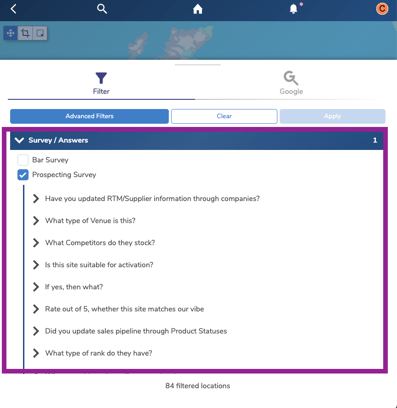
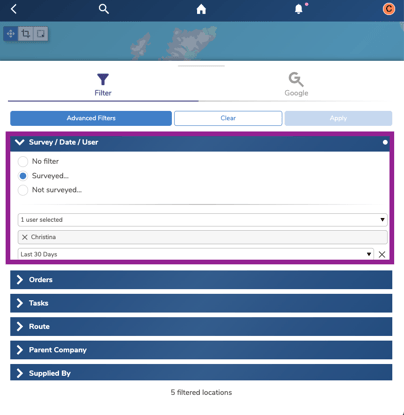
- Survey / Date / User: This filter set’s you to filter your locations by if they have or haven’t had a survey submitted within a specific time frame and even by a specific user. This filter can help you understand how many locations your sales reps have visited (submitted a survey) in the last 30 days.
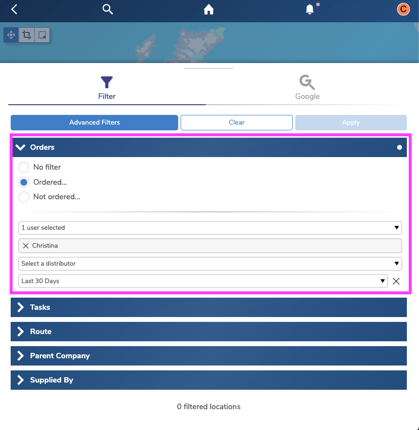
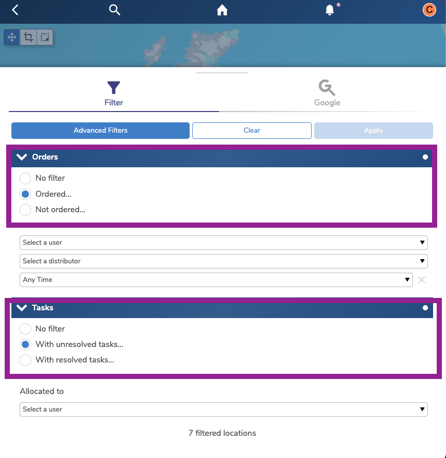
- Orders: This filter allows you to easily understand which locations have or haven’t ordered within a specific time period. It also allows you to filter by which user placed the order and even which distributor the order was with.
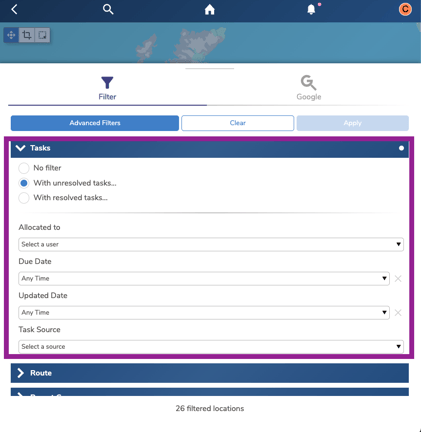
- Tasks: This filter allows you to easily understand which locations have unresolved tasks assigned to them. It also allows you to filter by who the task is assigned too, task due date and when the task was last updated.
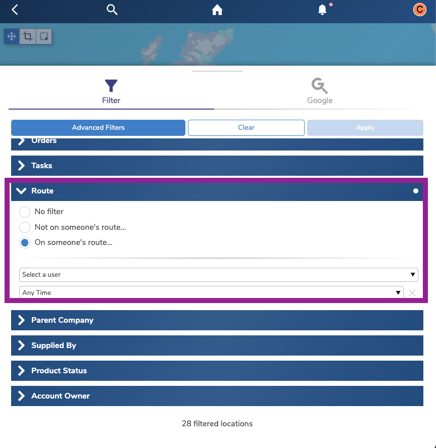
- Route: This filter let’s you easily see any locations that are currently assigned to someone's route. This can help to reduce the risk of visiting a location twice by mistake.
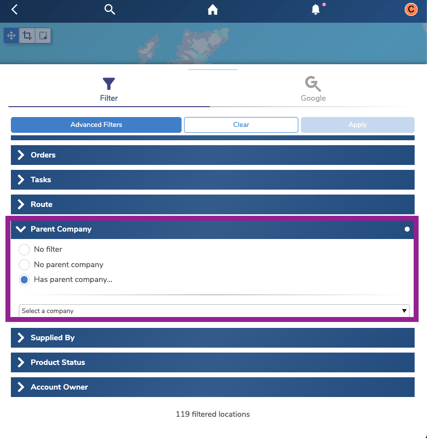
- Parent Company: This filter allows you to filter your locations by their parent company. If you have recently secured a national contract that may include multiple locations you can easily find them by simply filtering by their parent company.
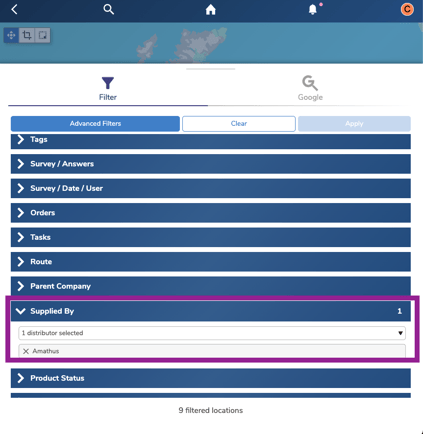
- Supplied By: This filter allows you to filter your locations by supplier (RTM). If you have recently got a new product listed with a RTM and are wanting to run a sales push, you can easily filter all of your locations by only the ones that support that RTM and add them to a route.
- Product Status: This filter will help you to access the list of sites with a specific product pipeline stage. You can further narrow the filters down by a desired range or Product/SKU.
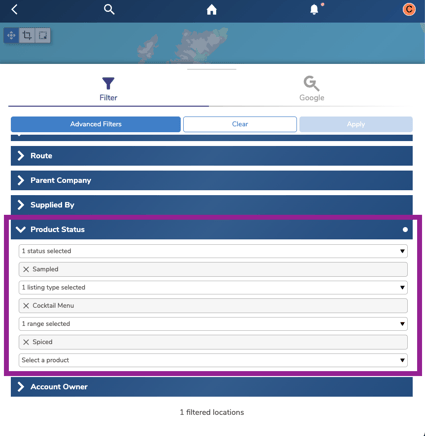
- Combining Filters: You can combine as many different filters as you like by simply selecting all the different filters you want to apply.
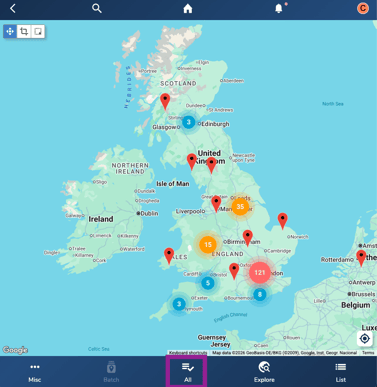
4. To work with all results, select “Select all”.
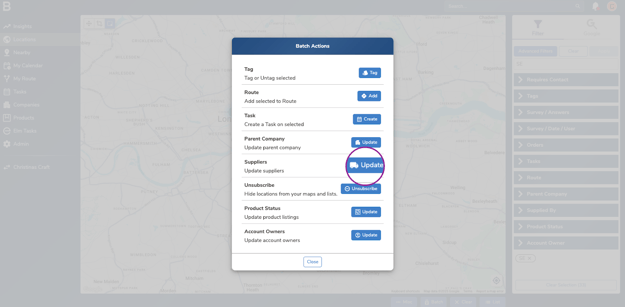
5. Select 'Batch' at the bottom of the screen.
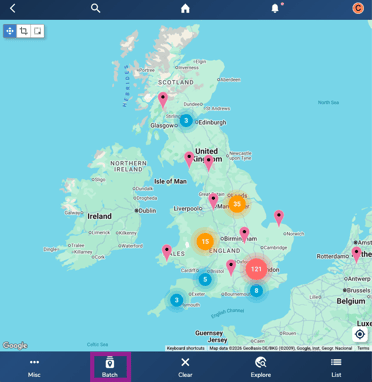
6. Select the desired action to perform with the selected sites. For eg, update supplier.
Troubleshooting:
- Still having issues?
- Contact the Bowimi Support Team for help.