![White_Bowimi_Logo_2025.png]](https://help.bowimi.com/hs-fs/hubfs/White_Bowimi_Logo_2025.png?height=40&name=White_Bowimi_Logo_2025.png)
Pre requisites:
1. You must have Admin/Manager access to build surveys.
2. If you do not see the admin tab or cannot perform the actions, please contact your leadership team or Bowimi Support.
Steps:
-
Navigate to Admin Tab on the account.
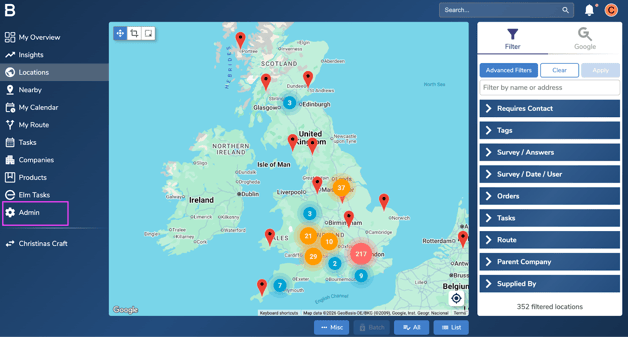
- Click on 'Surveys' tab and then click on the '+ Create' button at the bottom right corner of the page.
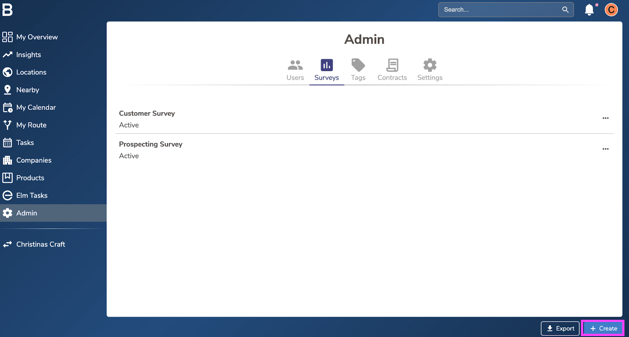
- On the survey builder page, type the “Survey Name” field. For Eg: Call Record.
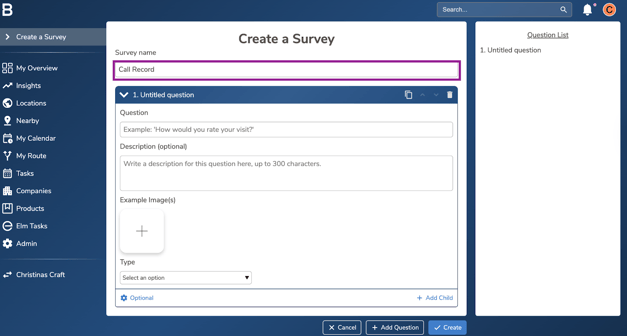
- In the question box, type the first question for the user to answer. You can add description and attach explanatory images to help guide your team.
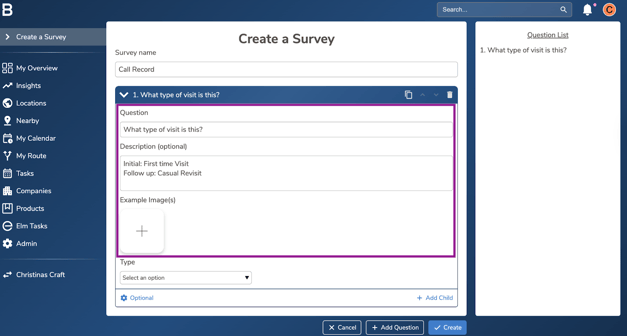
- Under the Type, select an answer type option to best capture the response for the framed question. Below are the provided answer types:
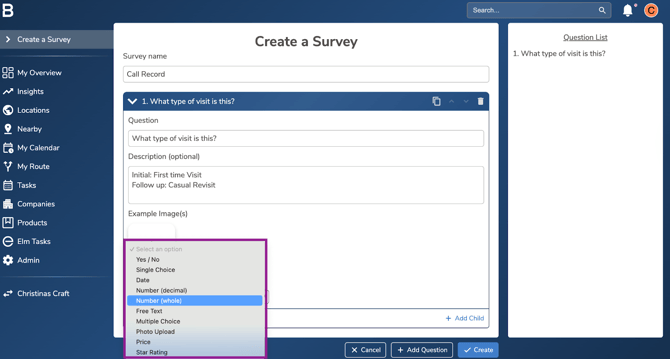
Yes / No
- Choose Yes or No to answer the question.
- 📊 Great for insights where: you want to see the % of the time the answer was yes or no, or you want to filter by where yes or no was answered.
Single Choice
- Choose one option from the list of options to answer the question.
- 📊 Great for insights where: you want to see the % of the time an answer was chosen, or you want to filter by responses with specific answers selected.
Date
- Choose a date to answer the question.
- 📊 Great for insights where: not available in Bowimi dashboard insights, available through PowerBI
Number (decimal)
- Enter a number to answer the question, supports decimal places (e.g. 1.23).
- 📊 Great for insights where: you want averages, min, max or sums.
Number (whole)
- Enter a number to answer the question, doesn’t support decimal places (e.g. 1).
- 📊 Great for insights where: you want averages, min, max or sums.
Free Text
- Type into a text box to answer the question.
- 📊 Great for insights where: you want to look through user notes or comments.
Multiple Choice
- Choose multiple options from the list of options to answer the question.
- 📊 Great for insights where: you want to see the % of the time an answer was chosen, or you want to filter by responses with specific answers selected.
Photo Upload
- Upload photos to answer the question.
- 📊 Great for insights where: Photo carousel to flick through photos.
Star Rating
- Choose a number of stars from 1-5 to answer the question.
- 📊 Great for insights where: you want averages, min, max or sums.
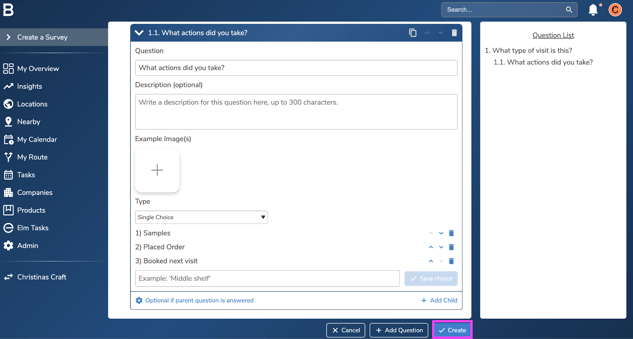
- Click the “+ Add Child” button at the bottom right of a question to add a “Child question” below the original question.
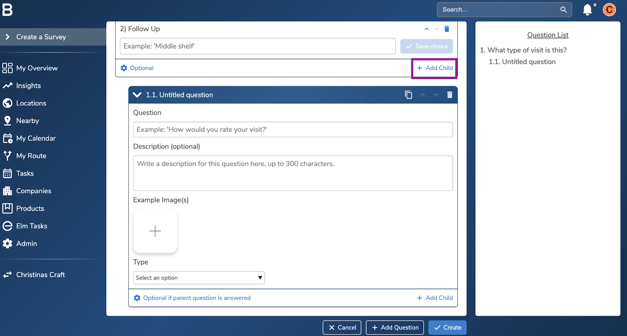
Note: You can have as many nested questions as you want and there’s no limit to how deep the nest can get (e.g. you can have a child, of a child, of a child, of a child…). - To configure the Question settings, click on the setting icon on the question to add a state or change the parent question dependency if nested questions are set.
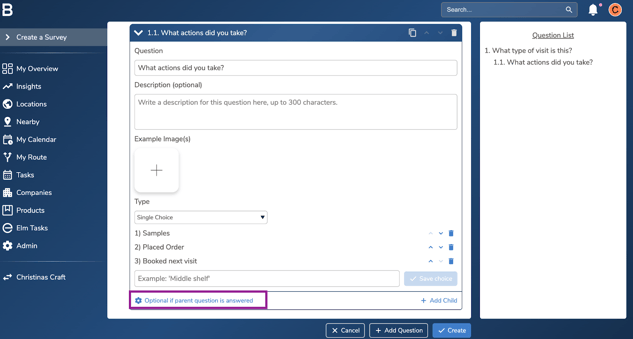
- Below are the set of configurations you can set through surveys:
- Options: Allows you to set the question mandatory or optional for team and edit the parent question.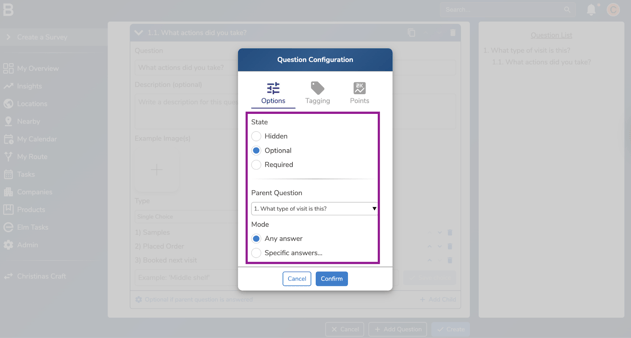
Note: Hidden questions doesn’t appear in the survey when a rep is completing it.
- Tagging: Helps you to set auto-tagging or removal of desired tags through the questions.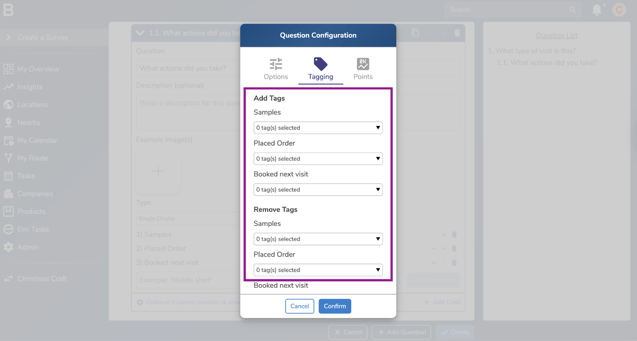
- Points: You can set it to assign a number of points to specific answers.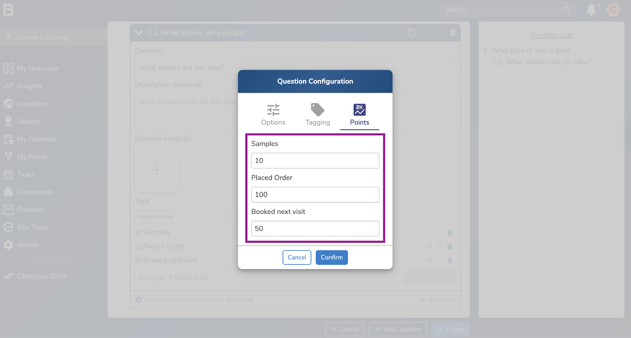
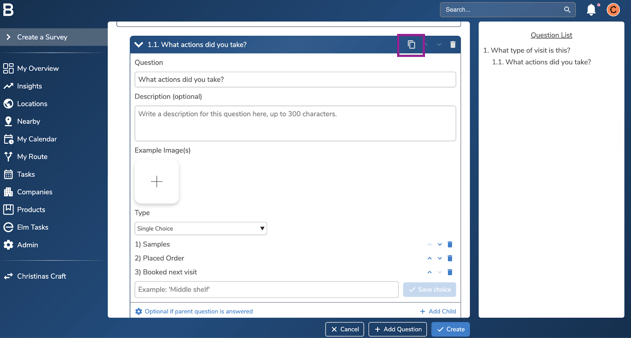
- If you want to create a copy of the question, click on the “Duplicate” icon and change the configuration if needed using the above step.
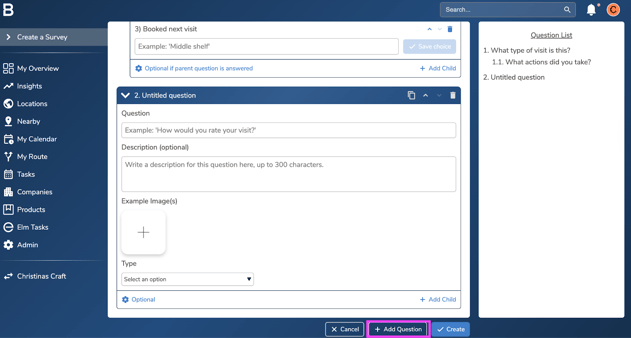
- Click “+Add question” to add a new question in the survey form.
- To save the survey click “Create” and set it live for the team.
Troubleshooting:
-
In case of permissions error please reach out to your Admin or leadership team for accessibility.
-
Still having issues?
- Contact the Bowimi Support Team for help.