![White_Bowimi_Logo_2025.png]](https://help.bowimi.com/hs-fs/hubfs/White_Bowimi_Logo_2025.png?height=40&name=White_Bowimi_Logo_2025.png)
Pre-requisites:
- You must have 'Owner' access to import locations.
- If you do not see the admin tab or cannot perform the actions, please contact your leadership team or Bowimi Support.
Steps:
- Log into your Bowimi account and click 'Locations'.
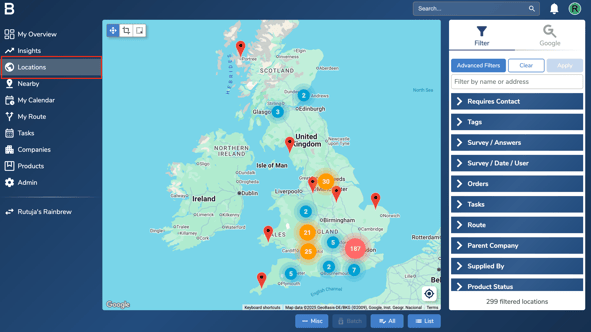
- Use the filter options in the Locations page to choose the locations you want to update. However, if you want to update all the locations, click “All” at the bottom of the page, then select the “Misc” and click “Export”.
i.
ii.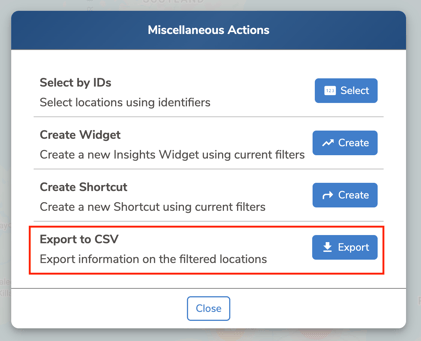
- After exporting, open the file and edit the location details you want to update. Save the sheet as a CSV file.
- Next, go to the Import page in Bowimi by changing the last part of the URL to /import.

- Upload the CSV file and map the columns where you made changes to their respective fields. Make sure to also map the Bowimi ID column, as this is required for the import to work.
If you are migrating locations from one Bowimi account to another, map the Global UUID instead of the Bowimi ID.
Here’s a video to guide you through the mappings.
Note: No import credits are required to upload the existing locations in Bowimi.
- Click “Start Lookups”, and once the lookups are complete, click the ‘Import’ button at the bottom to upload the locations into Bowimi.
Troubleshooting:
If you face any issues, please contact Bowimi Support Team for help.