![White_Bowimi_Logo_2025.png]](https://help.bowimi.com/hs-fs/hubfs/White_Bowimi_Logo_2025.png?height=40&name=White_Bowimi_Logo_2025.png)
Pre-requisites:
- You must have admin access to import locations.
- If you do not see the admin tab or cannot perform the actions, please contact your leadership team or Bowimi Support.
- We suggest using this Location Import template to fill in your customer data.
Note - Addresses or Postcodes are essential for uploading locations in Bowimi.
Steps:
1. Log into your Bowimi account and click on Locations.
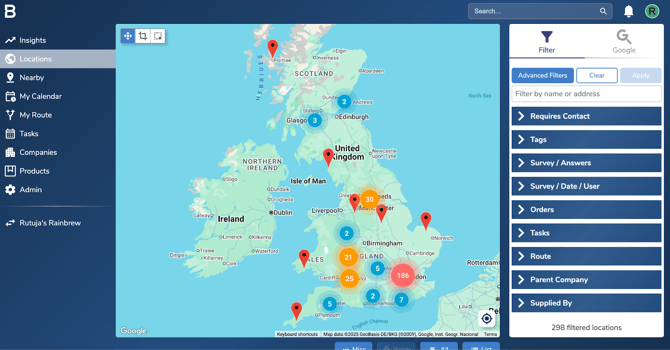
2. Change the last part of the URL from /location to /import.

3. Once you are on the import page, upload your csv file containing the locations and map them to different fields present in the system. Below is some information on different mapping fields:
- Select the mapping type as "Location" for any address, store name or postcodes.
- Select the mapping type as “Tag Group” for any location based tags. You can also create new tag groups by clicking on the “+ New Tag Group” option.
- To map relationships with wider groups, e.g. pub or cafe chains, select "Parent Company" as mapping type.
- Select "Supplier" as the mapping type to map relationships with distributors or route to market, e.g. LWC, CN Foods.
- Select "Contacts" as the mapping type to add contact information, such as contact name, job title, email address, and phone number for the location.
- Select mapping type as "Notes" to import additional notes on the account.
Here's an example on how to map your data
After mapping, select ‘Prepare Import’ to start importing on the account. If you prefer to save your mapped data and import later, please select ‘Save for Later’
4. Now click on the ‘Start Lookups’ button at the bottom to match the locations with their respective google profiles.
Note - You will require import credits to start the lookups. Some amount of credits will already be allocated to you as part of your subscription but if you need more, please contact your Bowimi account manager.
5. Once the lookups are complete, any locations marked in red or yellow (if any) will need your attention. You’ll need to review these manually and select the correct option for each one.
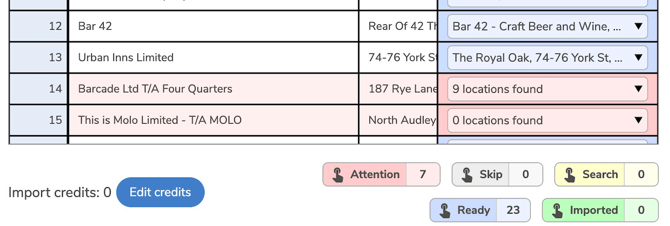
6. Once that’s done, click on the ‘Import’ button at the bottom to upload all the locations in Bowimi.
Troubleshooting:
- If you get an error message while importing data, we recommend re-checking the mappings. The data cannot be imported until at least the location names and addresses are mapped out.
- If you are still having issues, please contact the Bowimi Support Team for help.