![White_Bowimi_Logo_2025.png]](https://help.bowimi.com/hs-fs/hubfs/White_Bowimi_Logo_2025.png?height=40&name=White_Bowimi_Logo_2025.png)
Pre-requisites:
- You must have admin access to import product statuses.
- If you do not see the admin tab or cannot perform the actions, please contact your leadership team or Bowimi Support.
Note -
i. Addresses or Postcodes are essential for importing product statuses in Bowimi.
ii. Make sure all your products are already present in Bowimi. Refer to this guide to see how to import the products.
Steps:
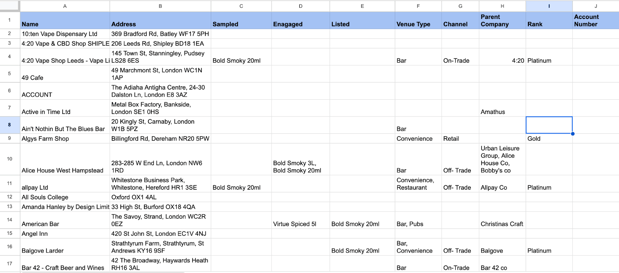
- Gather all the required data including location name, address, product names, and product status in a single sheet. Once ready, download the sheet as a CSV file. An example is shown below.
- Log into your Bowimi account and click on Locations.
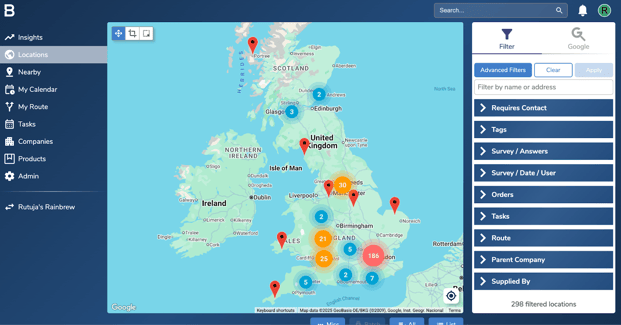
- Change the last part of the URL from /location to /import.

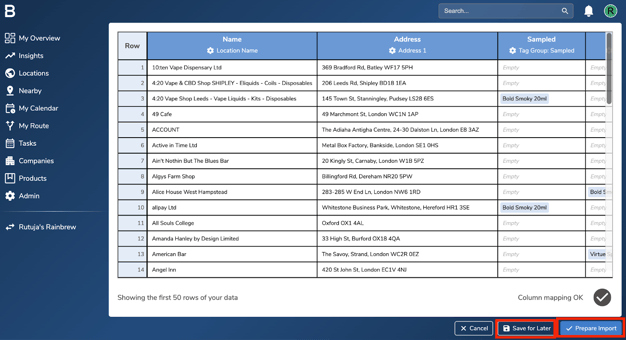
- Once you are on the import page, upload your csv file containing the locations and map them to different fields present in the system.
i. Select the mapping type as "Location" for any store name, address or postcodes.
ii. To map product statuses, create a new tag group and name it after the product status column. You can create a new tag group by clicking on the “+ New Tag Group” option.
Here’s a video on how to create a new tag group while mapping the fields. - Once the data is mapped, select ‘Prepare Import’ to start importing it into the account. If you’d prefer to save the mapped data and import it later, select ‘Save for Later’.
- Click the ‘Start Lookups’ button at the bottom to match the locations with their respective Google profiles.
Note - You will require import credits to start the lookups. Some amount of credits will already be allocated to you as part of your subscription but if you need more, please contact your Bowimi account manager.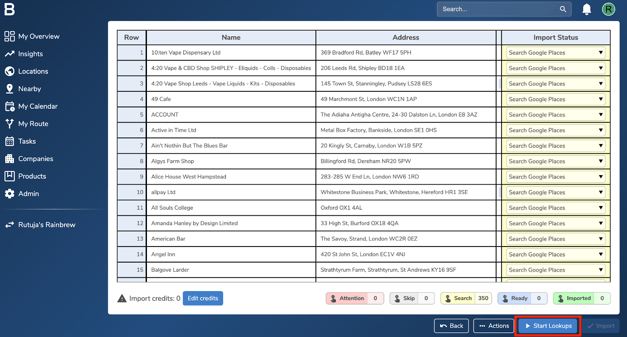
- Once the lookups are complete, any locations marked in red or yellow (if any) will need your attention. You’ll need to review these manually and select the correct option for each one.
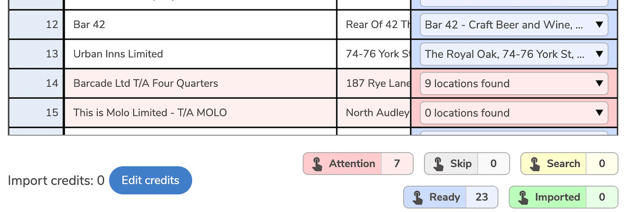
- Once that’s done, click the ‘Import’ button at the bottom to import all the locations into Bowimi.
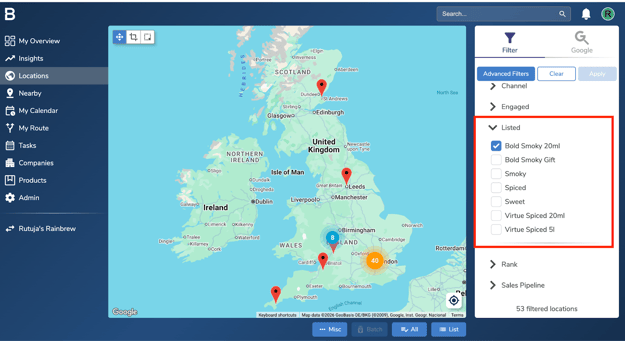
- Once the import is complete, click back onto the Locations page. In the filters tab on the right, navigate to Tags and select one of the products from the newly created tag group. This will filter and show the locations imported under that product.
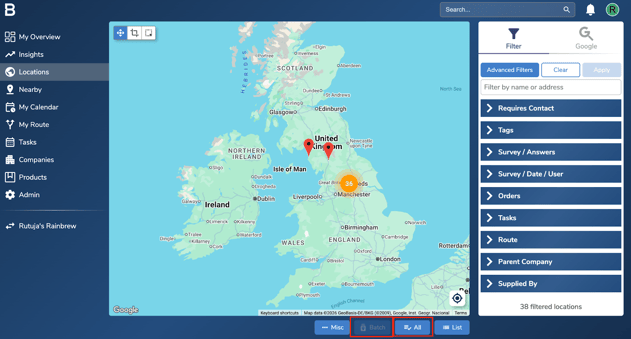
- After filtering the locations, click ‘All’ to select them, then click the ‘Batch’ option next to it.
- Go to the ‘Product Status’ option and click the ‘Update’ button next to it.
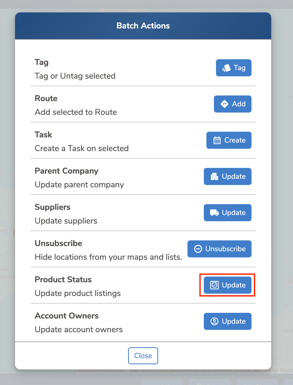
- Click on the specific product from the product list.
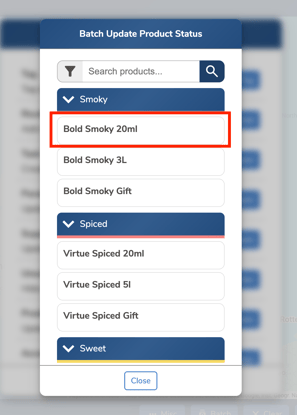
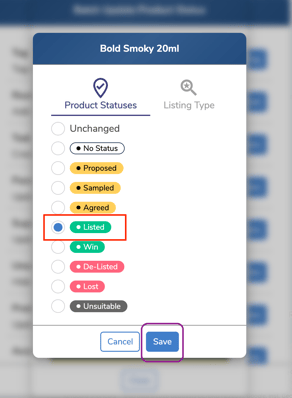
- Select the respective product status and click ‘Save’ to update the product status for the selected locations. Follow the same process for the other products with all the imported product status filters.
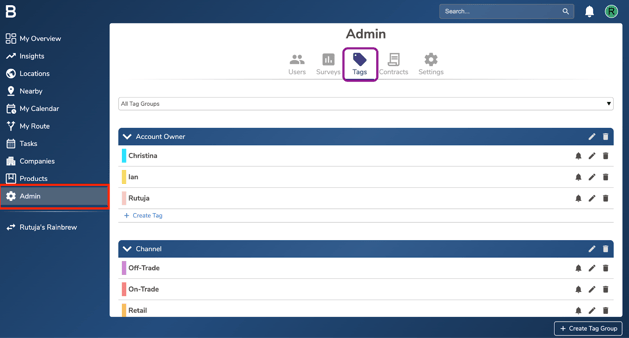
- Once all product statuses have been applied to their respective locations, you can delete the tags if needed by going to ‘Admin’ and clicking on ‘Tags’.
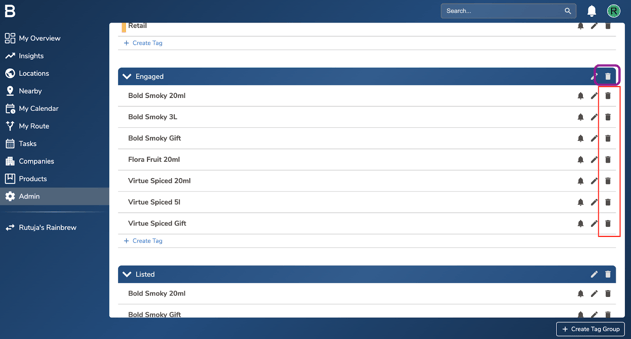
- To delete an entire tag group, you’ll first need to delete all the tags within that group. Click the ‘dustbin’ icon next to each tag to remove them one by one. Once all the tags are deleted, you’ll then be able to delete the tag group by clicking the ‘dustbin’ icon next to it.
Troubleshooting:
- If you get an error message while importing data, we recommend re-checking the mappings. The data cannot be imported until at least the location names and addresses are mapped out.
- If you are still having issues, please contact the Bowimi Support Team for help.