![White_Bowimi_Logo_2025.png]](https://help.bowimi.com/hs-fs/hubfs/White_Bowimi_Logo_2025.png?height=40&name=White_Bowimi_Logo_2025.png)
Steps:
-
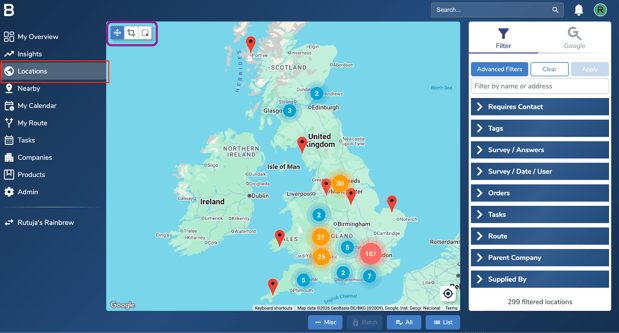
Go to the Locations page in the platform and select the locations you want to link a parent company to. You can use the filters on the right or the cropping tool in the top-left corner to bulk select locations.
- After filtering the locations, click ‘All’ to select them and next click the ‘Batch’ option beside it.
Here's an example on bulk selecting your locations.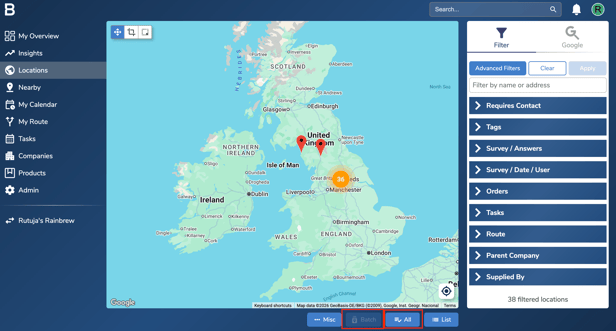
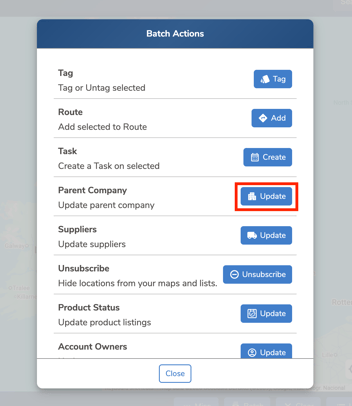
- Click the ‘Update’ button next to the Parent Company option.
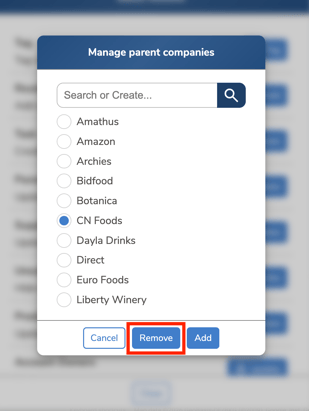
- Select the parent company and click ‘Add’ to link it to the selected locations.

- If you want to Unlink a parent company from multiple locations, follow steps 1-3. Select the company and click ‘Remove’ to unlink it from the selected locations.
Troubleshooting:
If you are still having issues, please contact the Bowimi Support Team for help.