![White_Bowimi_Logo_2025.png]](https://help.bowimi.com/hs-fs/hubfs/White_Bowimi_Logo_2025.png?height=40&name=White_Bowimi_Logo_2025.png)
Pre-requisites:
- You must have Admin or Manager access to manage product ranges.
- If you do not see the admin tab or cannot perform the actions, please contact your leadership team or Bowimi Support.
Creating Product Ranges
Steps:
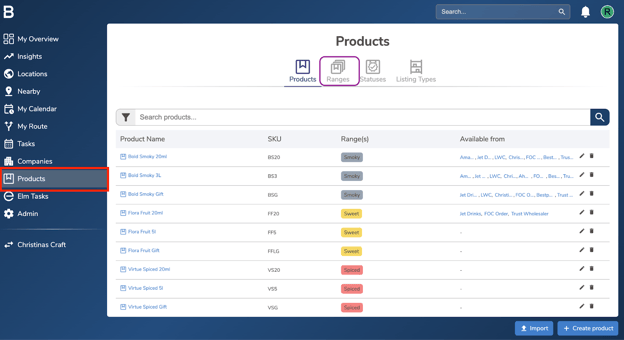
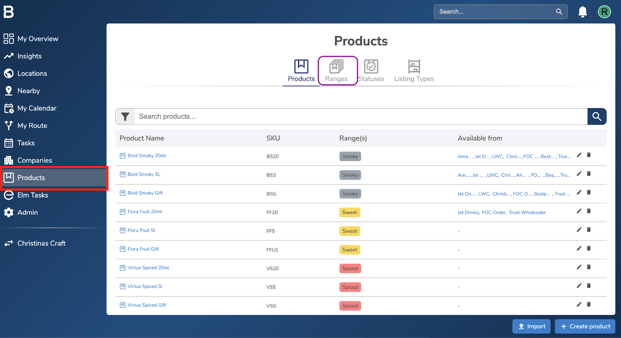
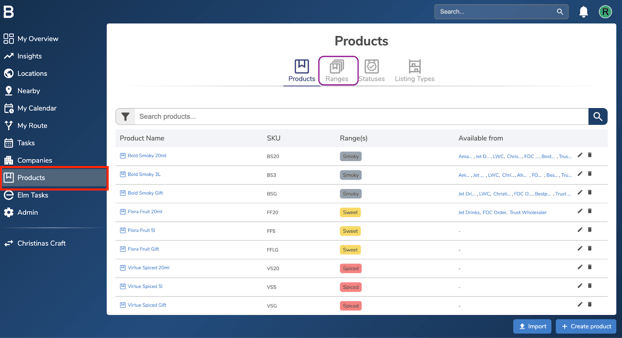
- Go to the ‘Products’ tab in the platform and click on ‘Ranges’.
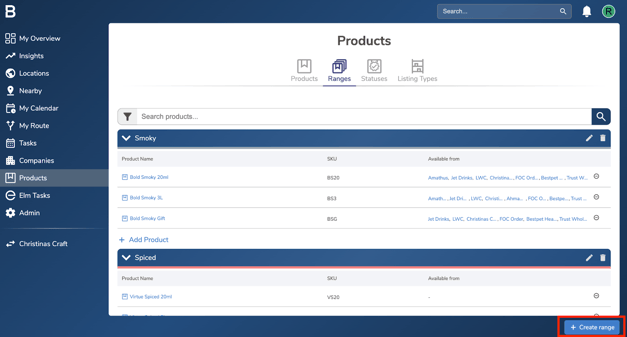
- Click ‘Create Range’ at the bottom of the screen.
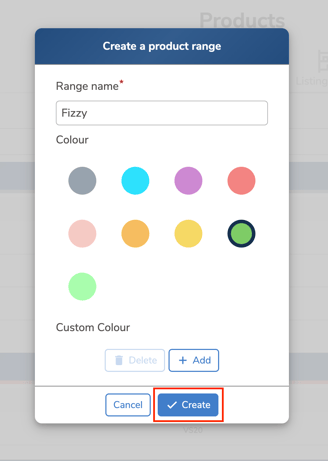
- Enter a name for the range and choose a colour to represent it. Once done, click ‘Create’ to create the new range.
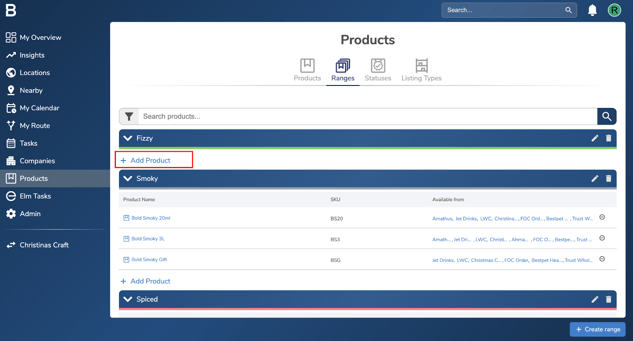
- To add products to the newly created range, click on the range name and then click ‘Add Product’.
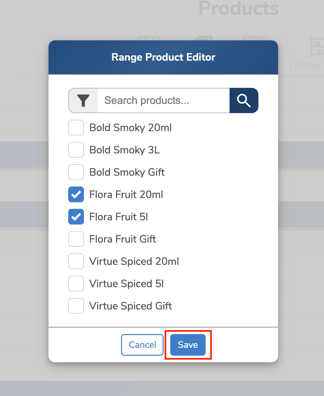
- Select the products you want to add. You can choose multiple products. Once selected, click ‘Save’ to add them to the range.
Editing Product Ranges
Steps:
-
To edit a range, go to the ‘Products’ tab in the platform and click on ‘Ranges’.
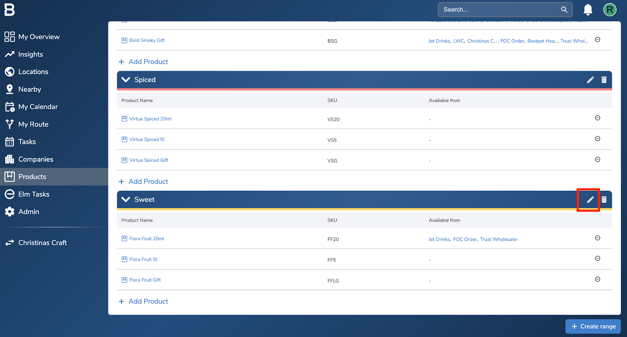
- Click the ‘pencil icon’ next to the range you want to edit.
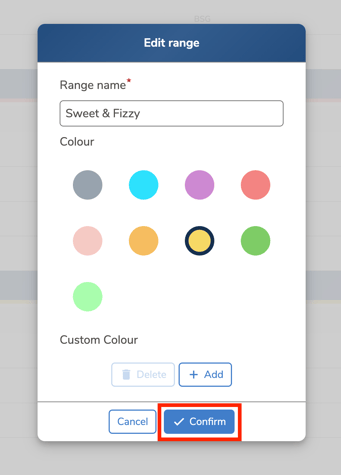
- Edit the name or colour of the range as needed, then click ‘Confirm’ to save your changes.
Deleting Product Ranges
Note:Deleting product ranges will delete the activity associated with it on the reports/insights.
Steps:
-
To delete a product range, go to the ‘Products’ tab in the platform and click on ‘Ranges’.
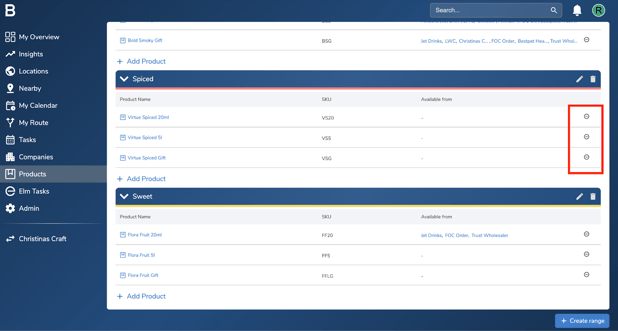
- You’ll need to remove all products from the range first. To do this, click the ‘minus’ icon next to each product, one by one, to remove them from the range.
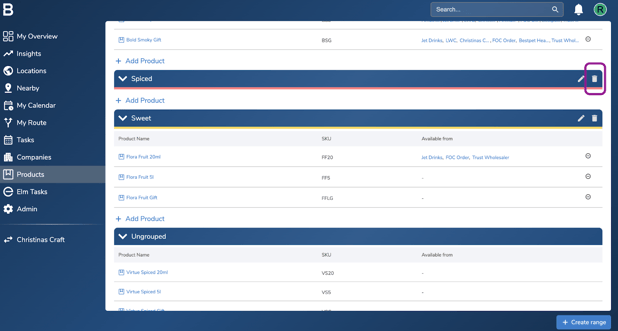
- Once all products have been removed from the range, click the ‘bin icon’ next to the range name to delete the range.
Troubleshooting:
If you are still having any issues, please contact the Bowimi Support Team for help.