![White_Bowimi_Logo_2025.png]](https://help.bowimi.com/hs-fs/hubfs/White_Bowimi_Logo_2025.png?height=40&name=White_Bowimi_Logo_2025.png)
Pre-requisites
- You must have admin access to manage users.
- If you do not see the admin tab or cannot perform these actions, please contact your leadership team or Bowimi Support.
Steps:
1. Log in to your Bowimi account:
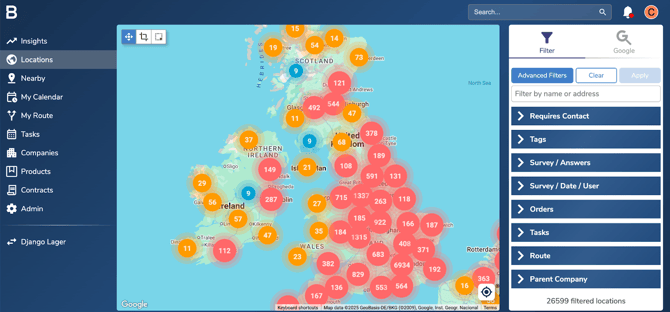
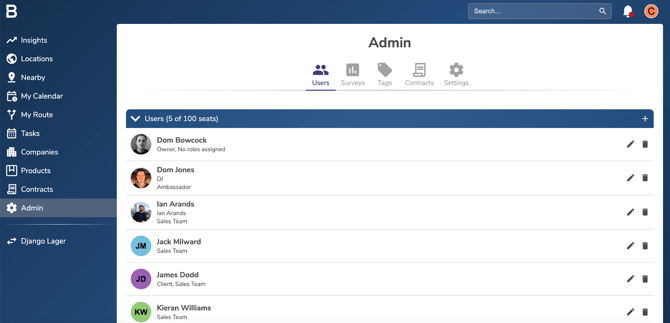
Add a New User:
- Click the ➕ Add User button.
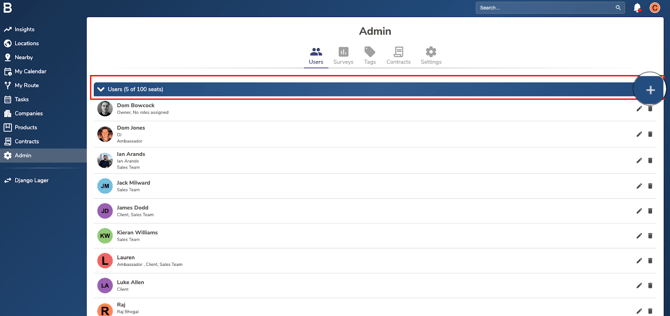
- In the pop-up:
- Enter the new user’s email address.
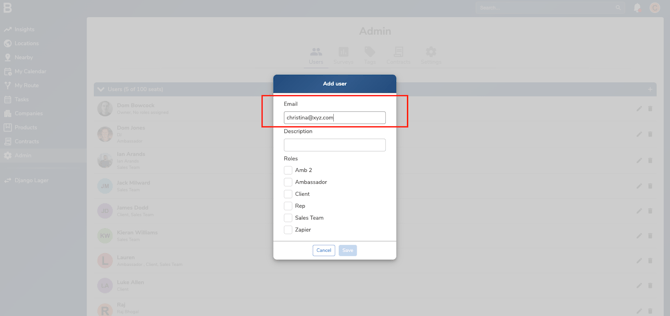
- Select their role to control their access.
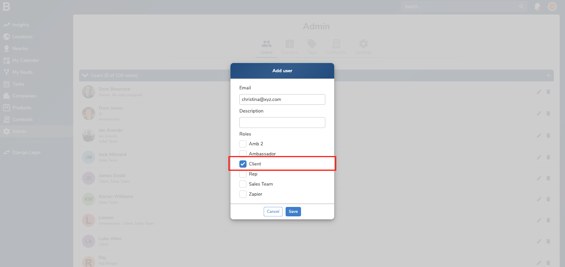
- Click Save.
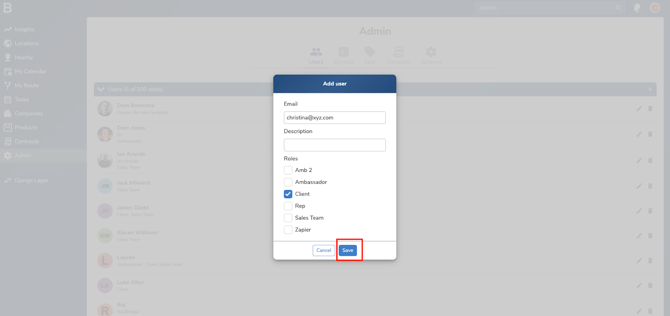
- Enter the new user’s email address.
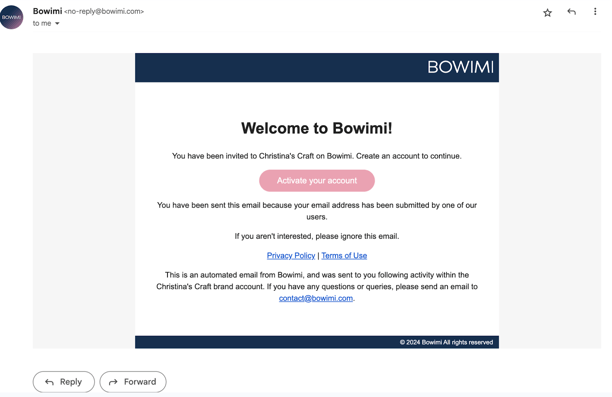
- The user will get an email invitation to join Bowimi.
Remove a User:
- In the user list, find the person you want to remove.
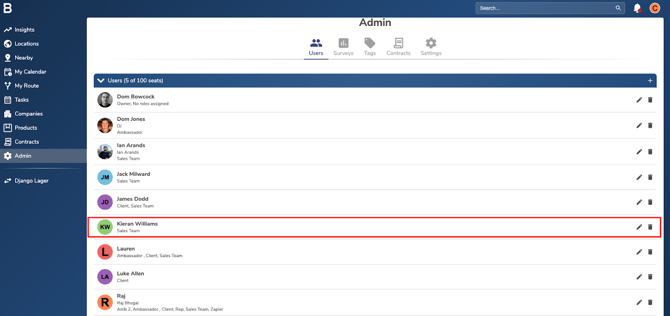
- Click the Bin icon 🗑️ next to their name.
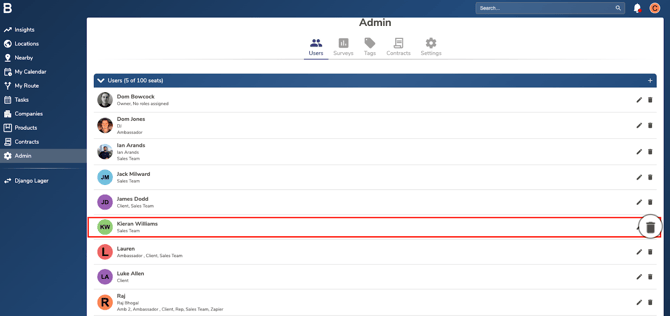
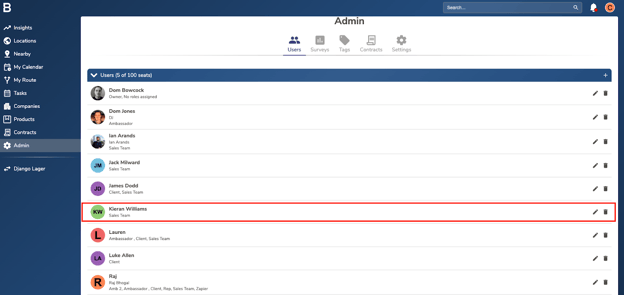
- Confirm the action if prompted.
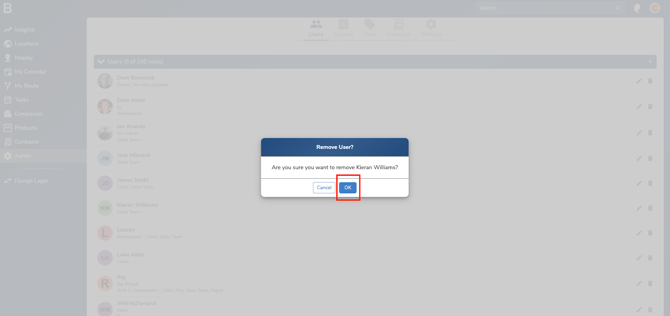
Edit an Existing User’s Role:
- Find the user whose role you want to change.
- Click the Pencil icon ✏️ next to their name.
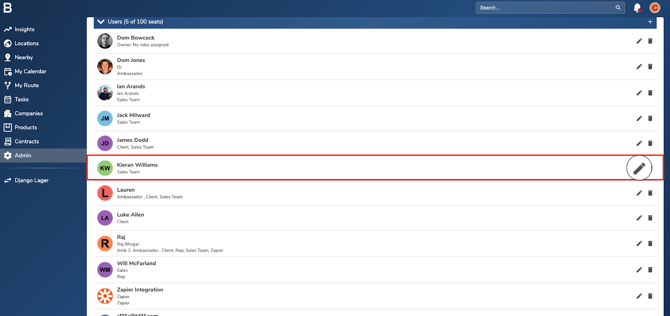
- In the pop-up window:
- Choose the new role from the drop down list.
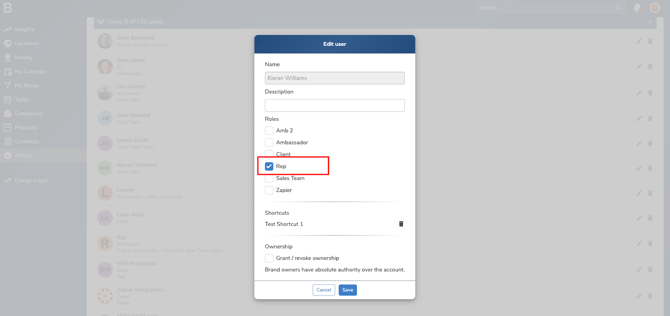
- Click Save.
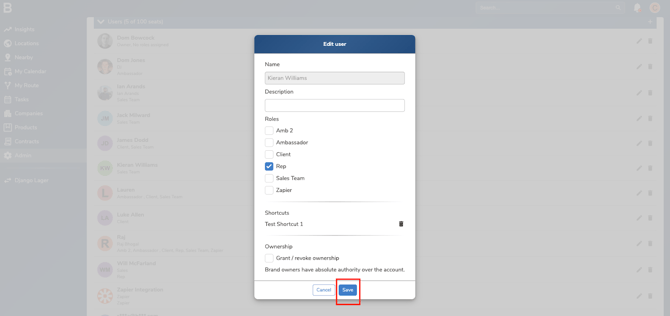
- Choose the new role from the drop down list.
Troubleshooting:
- Can’t add a user?
- Your account may have reached its seat limit.
-
- To check:
- Click the ➕ icon again in the user tab.
- Select the Subscription button in the pop-up menu.
- Manage or upgrade your seats using the Bowimi account email address.
- Click the ➕ icon again in the user tab.
- To check:
- Still having issues?
- Contact the Bowimi Support Team for help.