![White_Bowimi_Logo_2025.png]](https://help.bowimi.com/hs-fs/hubfs/White_Bowimi_Logo_2025.png?height=40&name=White_Bowimi_Logo_2025.png)
Pre-Requisites:
- You must have an order profile set up for the corresponding distributors for this to populate.
- If you don’t have an order profile, please contact the admin to have it created.
Steps:
1. Navigate to the locations tab on your account.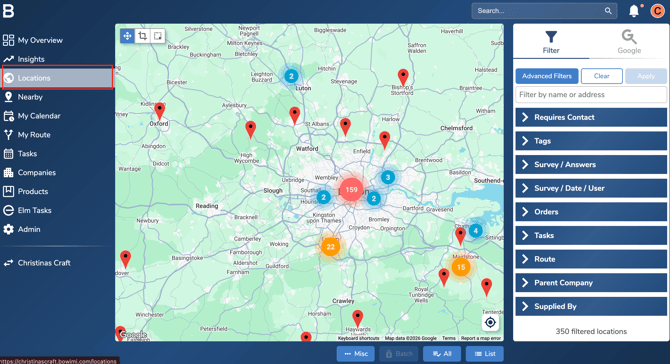
2. Search for the location to record the order via the search bar.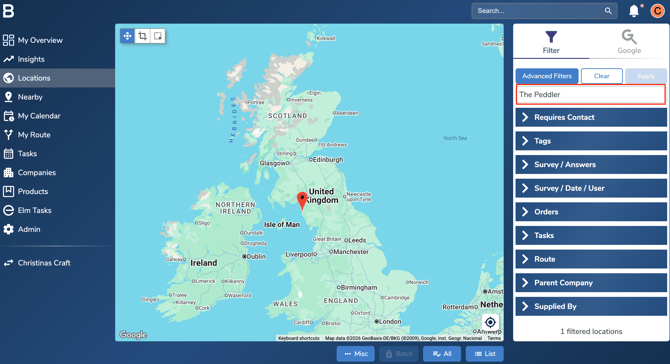
3. Click on “View Location” to open the dedicated page of the site.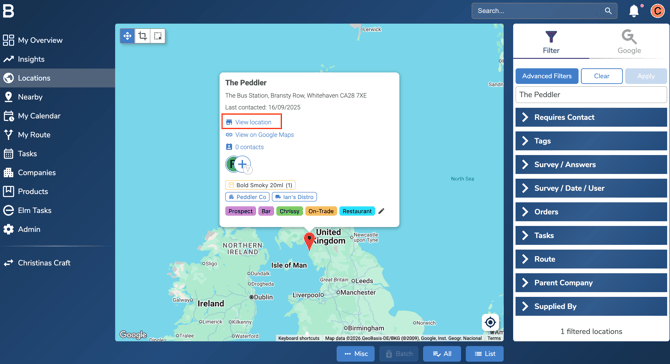
4. Under the actions tab, click on “Record Order” to capture historical order.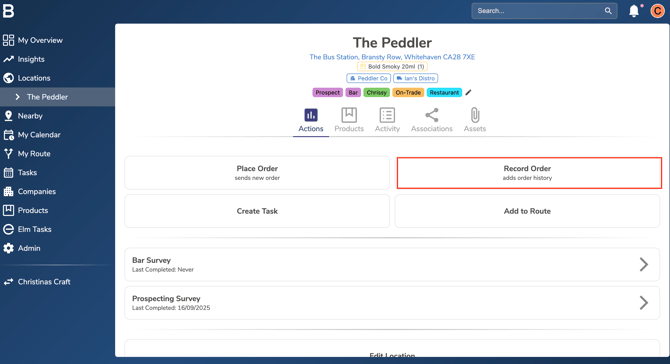
5. Fill in the order form with information on when the actual order took place and distributor.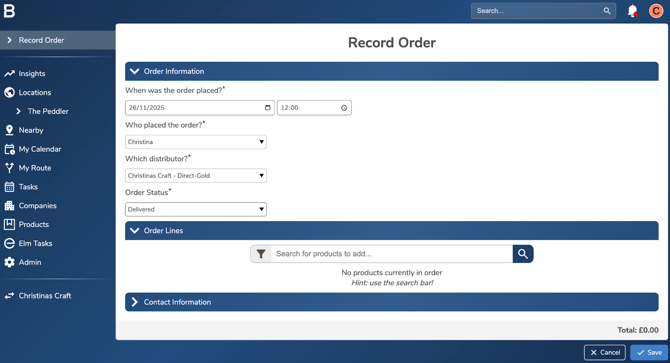
6. On the Order line section, add the products requested to purchase.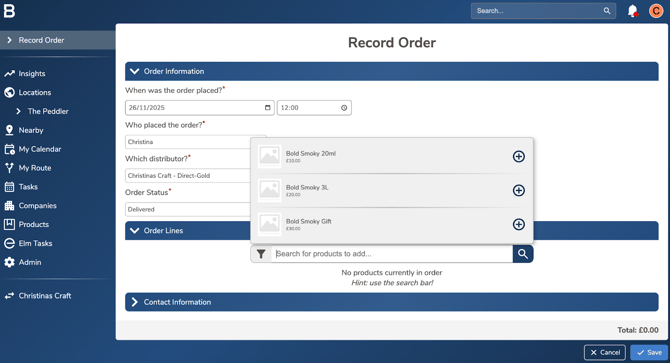
7. Enter the customer contact information if order email confirmation is set up with the selected distributor.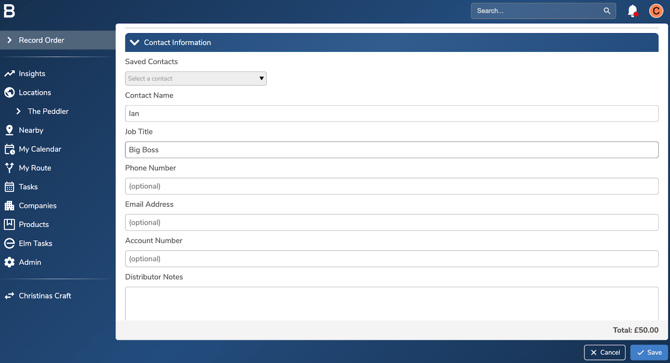
8. Click “Save” to record the order and populate on insights.
Troubleshooting:
- Can’t record the orders?
- Ensure the order profiles are configured for the appropriate distributor.
- Keep each distributor’s product list up to date within its order profile.
- Ensure the order profiles are configured for the appropriate distributor.
- Still having issues?
- Contact the Bowimi Support Team for help.