![White_Bowimi_Logo_2025.png]](https://help.bowimi.com/hs-fs/hubfs/White_Bowimi_Logo_2025.png?height=40&name=White_Bowimi_Logo_2025.png)
Steps:
-
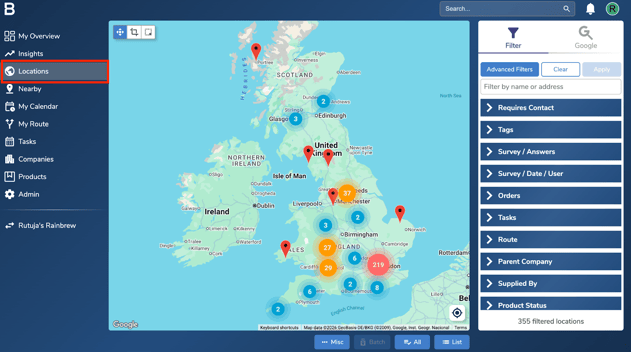
Go to the Locations page in your account.
-
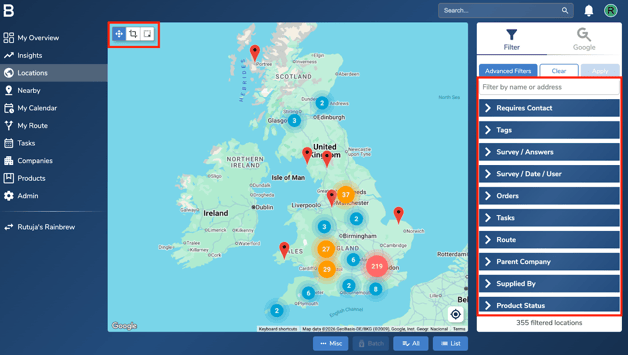
Select the locations you want to remove the RTM from. You can use the cropping tool on the top left corner or the filters on the right to bulk select locations.
-
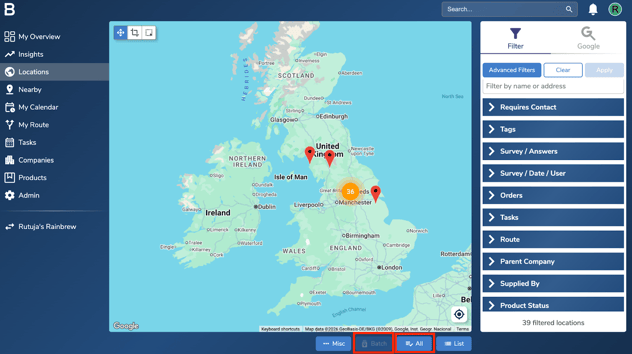
After filtering the locations, click ‘All’ at the bottom of the screen and next click the ‘Batch’ option beside it.
-
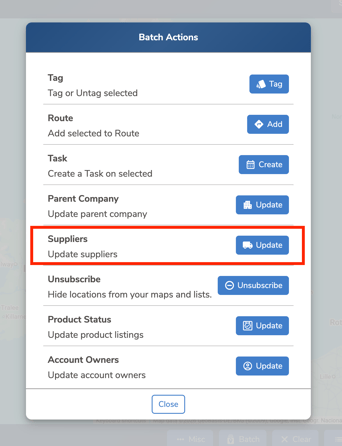
Go to the ‘Suppliers’ option and click on the ‘Update’ button in front of it.
-
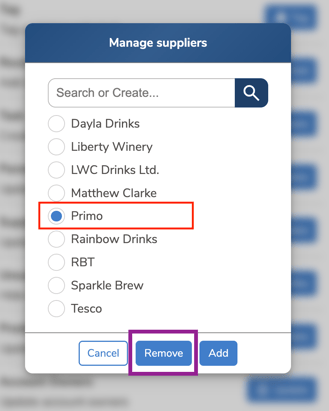
Select the respective RTM/Supplier and click “Remove” to bulk remove the RTM from the selected locations.
Troubleshooting:
- Make sure you have the necessary permissions to batch remove the RTM.
- If you are still having issues, please contact the Bowimi Support Team for help.