![White_Bowimi_Logo_2025.png]](https://help.bowimi.com/hs-fs/hubfs/White_Bowimi_Logo_2025.png?height=40&name=White_Bowimi_Logo_2025.png)
Pre requisites:
- You must have Admin/Manager access to create or manage Tag groups.
- If you do not see the admin tab or cannot perform the actions, please contact your leadership team or Bowimi Support.
Deleting/Removing a single location
Steps:
-
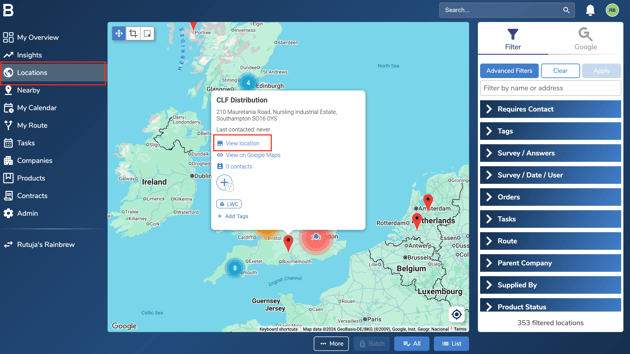
Go to the Locations page and select the location you want to remove from Bowimi. Then, click 'View Location'.
-
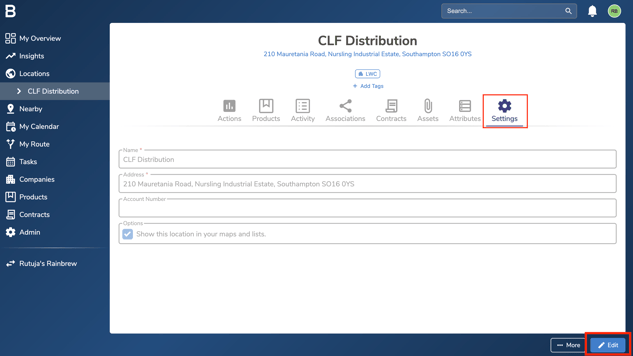
Next, navigate to the Settings tab and click 'Edit' at the bottom of the page.
-
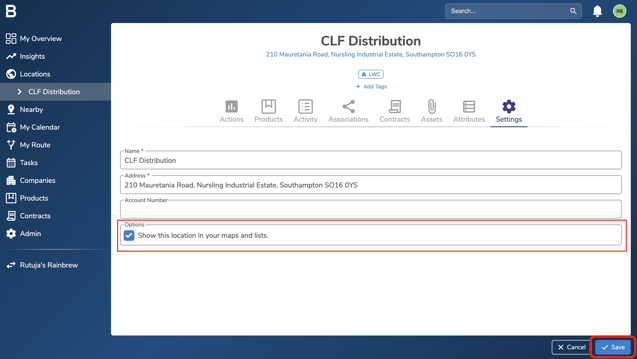
Untick the option highlighted in the image below, then click 'Save' at the bottom of the page to remove/delete the location from Bowimi.
Bulk Deleting/Removing multiple locations
Steps:
-
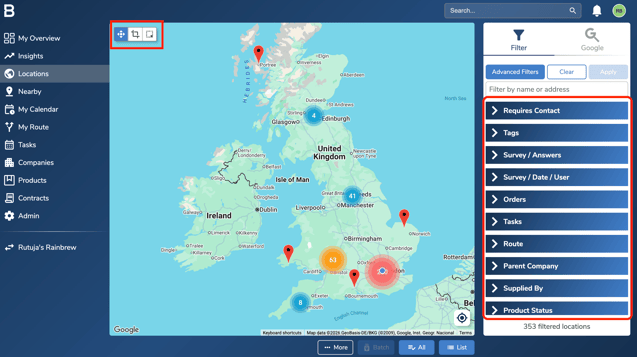
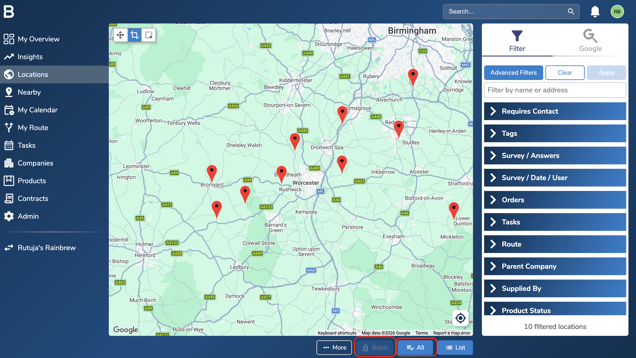
Select the locations you want to remove using the cropping tool at the top of the page, or use the filters on the right-hand side.
-
Once you've selected the locations, click 'All' at the bottom of the page, then select 'Batch' next to it.
-
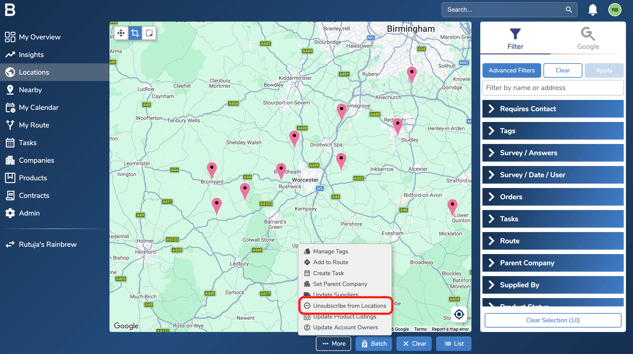
Select 'Unsubscribe from Locations', then click 'OK' in the confirmation pop-up to remove the selected locations from Bowimi in bulk.
Troubleshooting:
-
In case of permissions error please reach out to your Admin or leadership team for accessibility.
-
Still having issues?
- Contact the Bowimi Support Team for help.