![White_Bowimi_Logo_2025.png]](https://help.bowimi.com/hs-fs/hubfs/White_Bowimi_Logo_2025.png?height=40&name=White_Bowimi_Logo_2025.png)
Pre requisites:
-
You must have Admin/Manager access to create or manage Xero integration.
-
If you do not see the admin tab or cannot perform the actions, please contact your leadership team or Bowimi Support.
Steps:
-
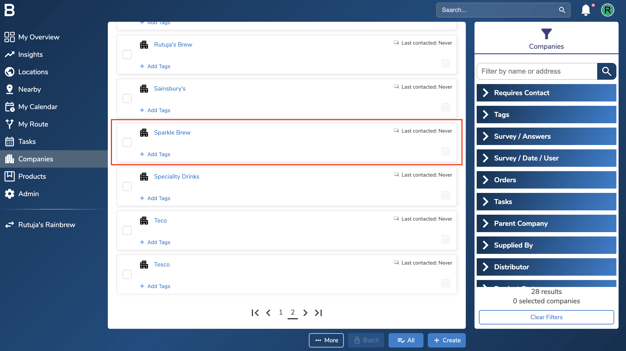
Navigate to the company you’d like to import your orders into.
-
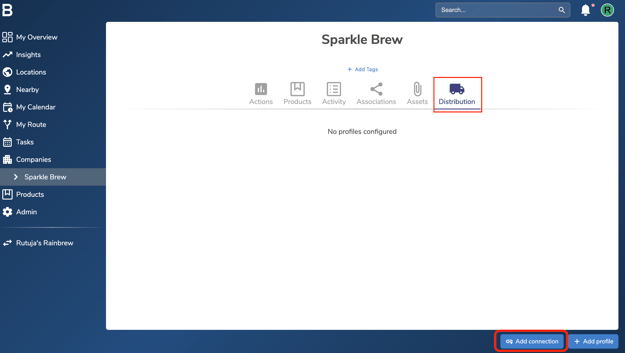
Head to the “Distribution” tab and click “Add connection” at the bottom of your screen.
-
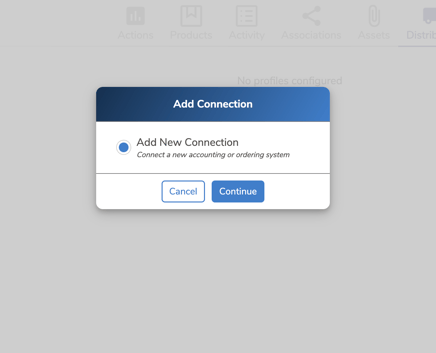
Select “Add New Connection” then click “Continue”.
-
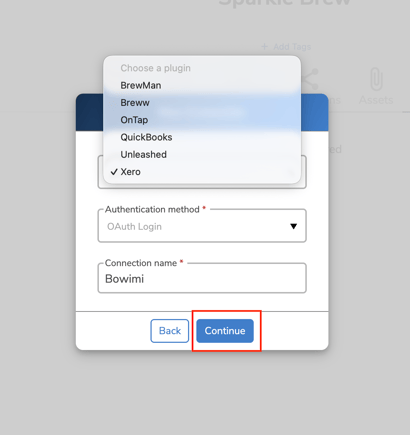
Choose “Xero” from the list of options and give a name to the connection. Once done, click "Continue".
-
Click “Allow access” on the new window that pops up to authenticate into your Xero account.
-png-3.png?width=403&height=432&name=image%20(1)-png-3.png)
-
You’ll now be able to see your new Xero connection in Bowimi. Click “Dashboard” in the top left of your screen to go back into your Bowimi account
-png-Apr-08-2026-12-16-15-2479-PM.png?width=627&height=331&name=image%20(1)-png-Apr-08-2026-12-16-15-2479-PM.png)
-
Navigate back to your company’s “Distribution” tab and click “Add Connection” at the bottom.
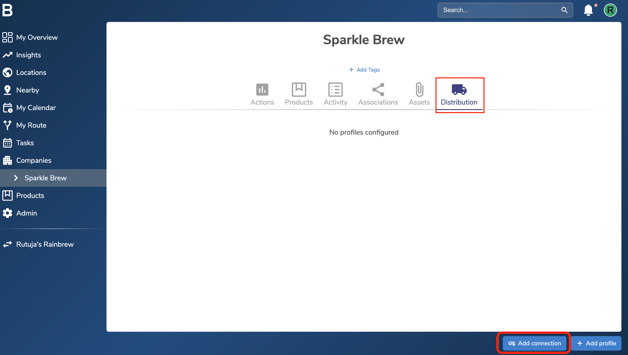
-
Select the new connection you’ve just added and click “Confirm”.
-png-Apr-08-2026-12-27-11-1709-PM.png?width=629&height=332&name=image%20(1)-png-Apr-08-2026-12-27-11-1709-PM.png)
-
Select the date from which you’d like to import your invoices, along with the organisation and click "Confirm".
-png-Apr-08-2026-12-29-20-3446-PM.png?width=631&height=333&name=image%20(1)-png-Apr-08-2026-12-29-20-3446-PM.png)
-
Switch the toggle to the right to enable the connection. Next click on the "three dots" in front of it.
-png-Apr-08-2026-12-32-25-0933-PM.png?width=629&height=330&name=image%20(1)-png-Apr-08-2026-12-32-25-0933-PM.png)
-
Click “Match Products” from the pop-up list.
-png.png?width=625&height=328&name=image%20(2)-png.png)
-
Next, click “Import Products” at the bottom to import your products from Xero.
-png-1.png?width=633&height=332&name=image%20(2)-png-1.png)
-
Click “Auto match” to automatically match Bowimi and Xero products if they have the same SKU in both platforms. Then click “Save Products” when you’re finished.
-png-2.png?width=631&height=331&name=image%20(2)-png-2.png)
NOTE: If a product in your Xero account contains multiple units of a product in your Bowimi account, use our “Case Size” column to reflect that. For example, the product in Xero could be called “Absolut Vodka 70cl x 6” and in Bowimi could be called “Absolut Vodka 70cl”. In this case you’d match these two products with each other and put the number 6 into the “Case Size” field. -
Once done, head back to the “Actions” modal in the previous step and choose “Match Entities”.
-png-3.png?width=627&height=329&name=image%20(2)-png-3.png)
-
Click “Click to match” to match each customer from Xero to a customer in Bowimi.
-png-4.png?width=633&height=286&name=image%20(2)-png-4.png)
-
Once you have matched the entities, head back to the “Actions” modal in the previous step and choose “Order Backlog”, this is where all of your pre-processed orders live.
-png-Apr-08-2026-12-50-05-5324-PM.png?width=633&height=332&name=image%20(2)-png-Apr-08-2026-12-50-05-5324-PM.png)
-
Match the products and customers and once done click "Process Backlog" at the bottom to allow orders to be imported.
-png-Apr-08-2026-12-52-09-7790-PM.png?width=633&height=286&name=image%20(2)-png-Apr-08-2026-12-52-09-7790-PM.png)
Troubleshooting:
-
In case of permissions error please reach out to your Admin or leadership team for accessibility.
-
Still having issues?
- Contact the Bowimi Support Team for help.