![White_Bowimi_Logo_2025.png]](https://help.bowimi.com/hs-fs/hubfs/White_Bowimi_Logo_2025.png?height=40&name=White_Bowimi_Logo_2025.png)
IMPORTANT! - When connecting your emails to Bowimi, every email sent may become visible to other members in your organisation. Use filters or triggers in Zapier to ensure that you do not send any sensitive emails to Bowimi.
Zapier is a separate product to Bowimi, and not affiliated in any way. Zapier is a product which you will have to pay for, and the price is based on your usage (how many tasks you need per month). Importing an email in Bowimi will be 1 or 2 tasks depending on how you’ve setup the zap.
Steps:
-
Login to your Zapier account
-
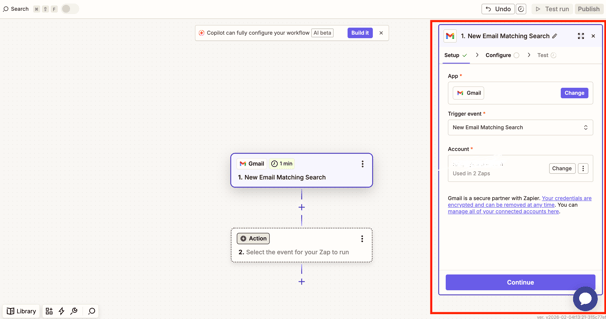
Create Zap using your email service as a trigger (Gmail, Outlook, etc) and our “Add an Email” Bowimi zapier action as the action. Please use our Gmail or Outlook templates when setting up the zap. Please make sure that you’re either filtering in the trigger or adding a filter step to avoid sensitive emails getting to Bowimi.
-
Click ‘Continue’ to move on to the Configure options.
When using the Gmail template, you’ll need to manually add the “Message ID”, make sure that this maps to the “Raw Payload Headers Message ID” and make sure it’s got data in it from the test trigger you’ve just created when setting up the zap.
-png.png?width=391&height=209&name=image%20(1)-png.png)
-
The image below shows an example of the mapped fields. To create an email you need at a minimum:
- Message ID
- “From” address
- “To” addresses
- Date received
- Subject text
- Auto content (recommended to provide the HTML one, as you can see from the example to the right, we used “Body Html” from the Gmail trigger)
-png-1.png?width=273&height=704&name=image%20(1)-png-1.png)
-
Click ‘Continue’ and test the steps in the following step.
-
Observe the emails on the activity feeds of the locations and companies where that email address (to, from or cc) is on a contact. To add an email address to a contact or to create a contact, navigate to the “Associations” tab on a location or company, then click “+ Add Contact” or edit an existing contact.
-png-2.png?width=630&height=413&name=image%20(1)-png-2.png)
Troubleshooting:
If you are still having issues, please contact your Account Manager or the Bowimi Support Team for help.